Read announcements
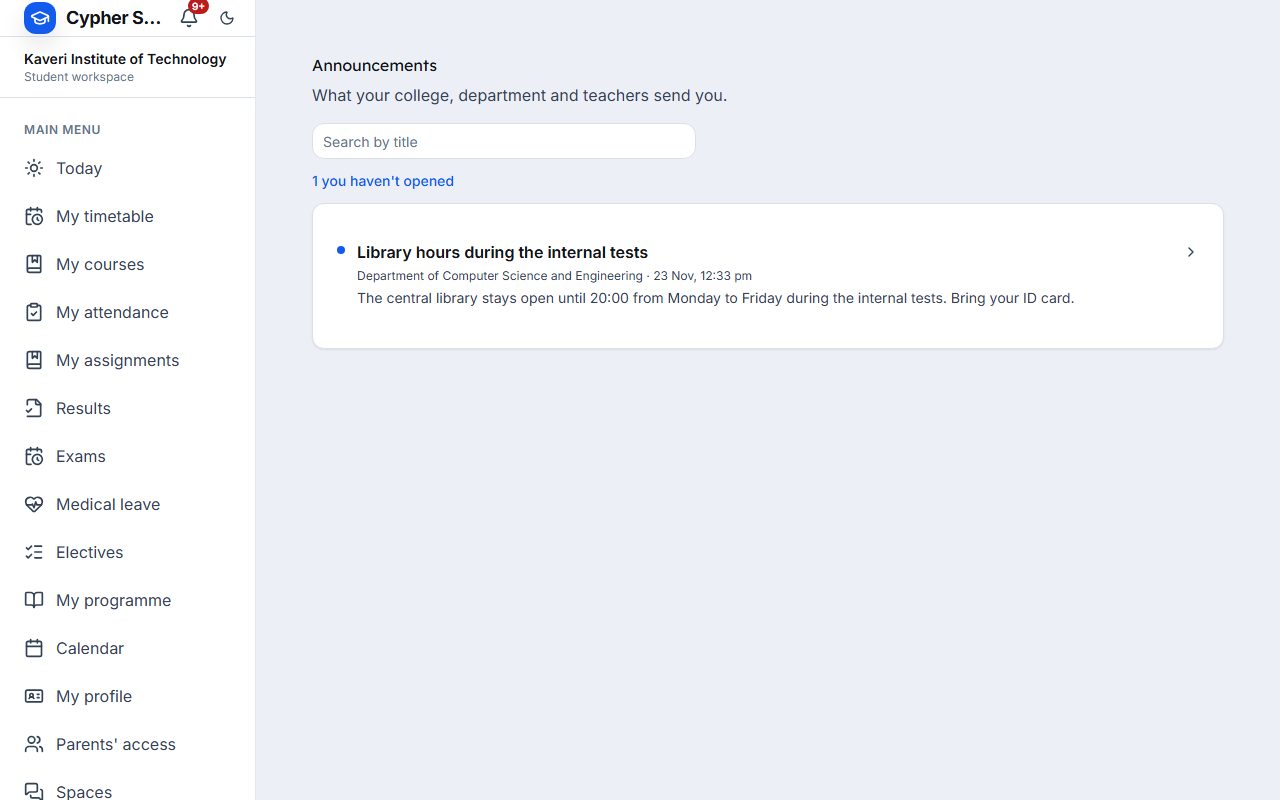
Announcements holds what your college, your department and your teachers send you, newest first, including the college's numbered circulars. Some ask you to mark them Noted once you've read them.
Who can do this: students, for the announcements sent to them.
Steps
-
In the menu, choose Announcements, or open one from Today or a notification. (The first time, agree to the community rules.)
The line under the search says how many you haven't opened, and how many to mark Noted. Unopened ones have a dot.
-
To find one, type a word from its title in Search by title.
-
Choose an announcement to open it.
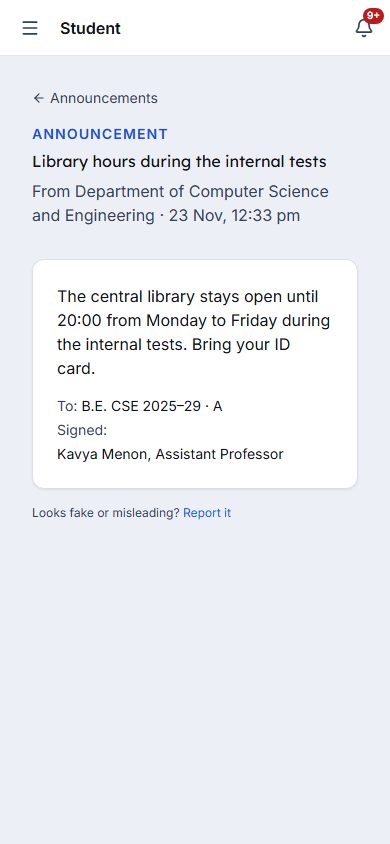
It shows who it's from and when, the text, who it's To:, who Signed: it, any files, and the text in a second language when the college added one. A circular shows its number.
-
If it asks you to, choose Noted once you've read it: "Please mark it Noted by {date} once you've read it."
What happens next
- Opening an announcement tells the sender you've seen it.
- After Noted, it says "You marked it Noted on {date}." Choose Undo if you marked it by mistake, while you still can.
- Urgent announcements come at once, even during quiet hours.
- If the sender corrects an announcement, it's marked Corrected. If you'd marked it Noted, it asks you to mark it Noted again. If they withdraw it, it's marked Withdrawn, with their reason.
The newest announcements are kept on your phone, so you can read them offline. Noted needs a connection.
If something goes wrong
- "No announcements yet.": nothing has been sent to you yet.
- "Nothing matches": try other words from the title.
- It looks fake or misleading: choose Report it at the bottom. See Report something.