Use the campus feed
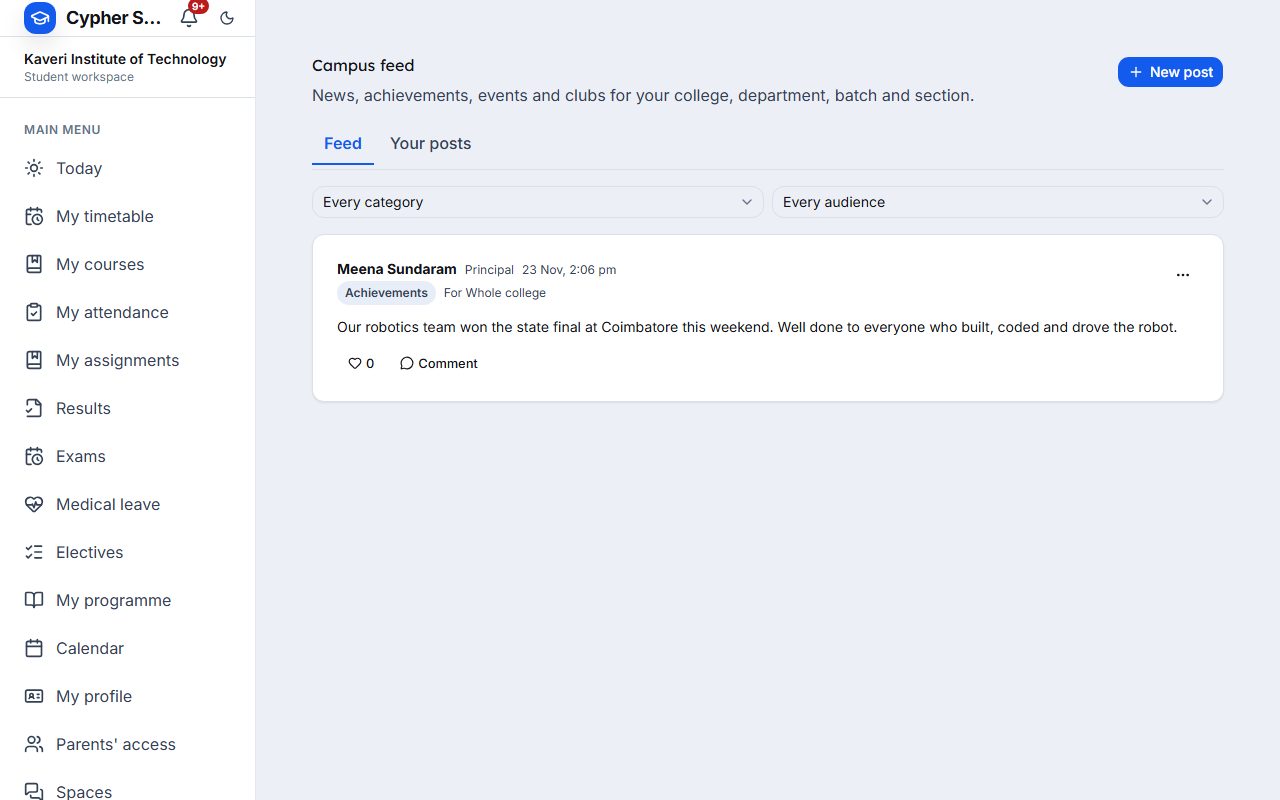
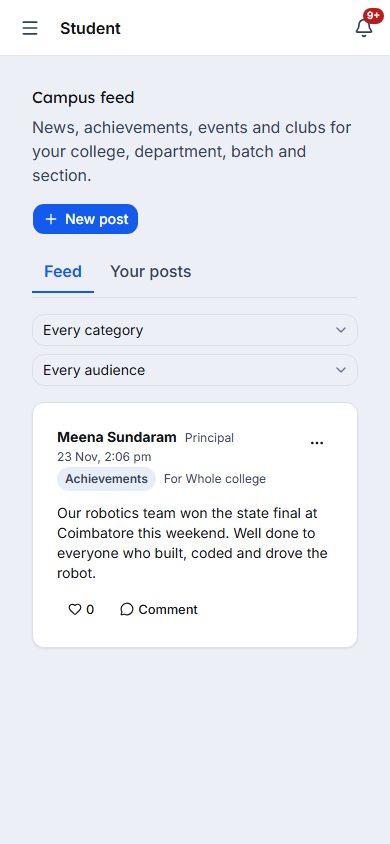
The Campus feed has news, achievements, events and clubs for your college, department, batch and section. You can like and comment on posts, and post yourself.
Who can do this: students read the posts for their college, department, programme, batch and section. They post to their section, their batch or the college, in the categories open to students.
Read the feed
- In the menu, choose Campus feed.
- Read the posts, newest first. Pinned posts come first. Each shows who posted it, its category, and who it's for, for example For Whole college.
- To see only some posts, choose a category under Every category, or an audience under Every audience.
- Choose the heart to like a post, or Comment to read and write comments.
Post on the feed
- Choose New post.
- Choose a Category.
- Under Who it's for, choose the audience. Only the audiences your role covers are offered.
- Write your post in Text. Any language and script is fine.
- To add photos, use Add images.
- Choose Post.
What happens next
- In some categories, a student's post waits for approval: "Posted. It waits for approval: you're told when it's decided. It's under Your posts." The HOD of the department, or a college moderator, approves or doesn't, and you're told.
- Otherwise it's on the feed at once: "Posted to the campus feed."
- Your posts lists your posts, and whether each is waiting, approved, or not approved.
If something goes wrong
- "Nothing posted for you yet": posts for your college, department, batch and section show here.
- "Only staff post in {category}.": choose a category open to students.
- Your post wasn't approved: you're told why.
- A post or comment breaks the rules: open its actions (⋯) and choose Report…. See Report something.