See your timetable
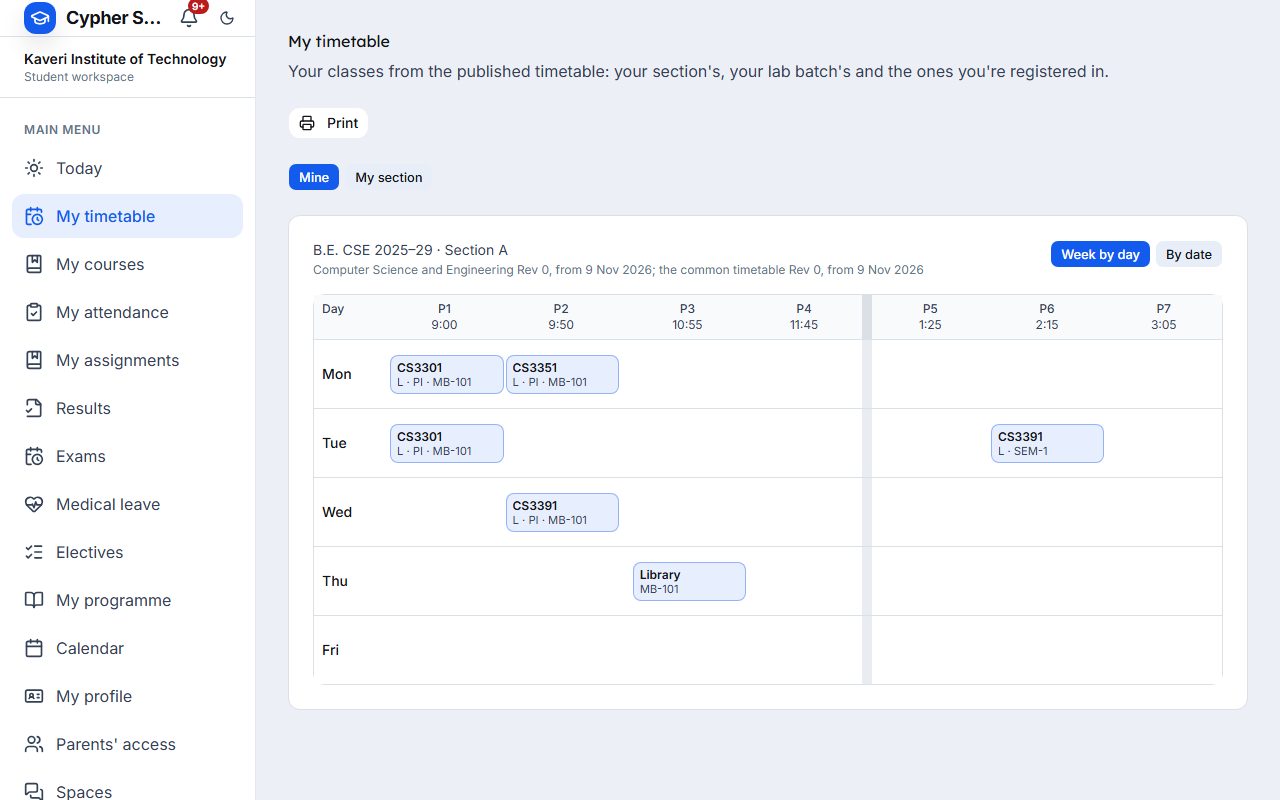
My timetable shows your classes from the published timetable: your section's, your lab batch's, and the elective and other classes you're registered in.
Who can do this: students, for their own timetable, once their department publishes it.
Steps
- In the menu, choose My timetable.
- Choose whose timetable:
- Mine: only the classes you attend.
- My section: your whole section's timetable.
- Choose how to show it:
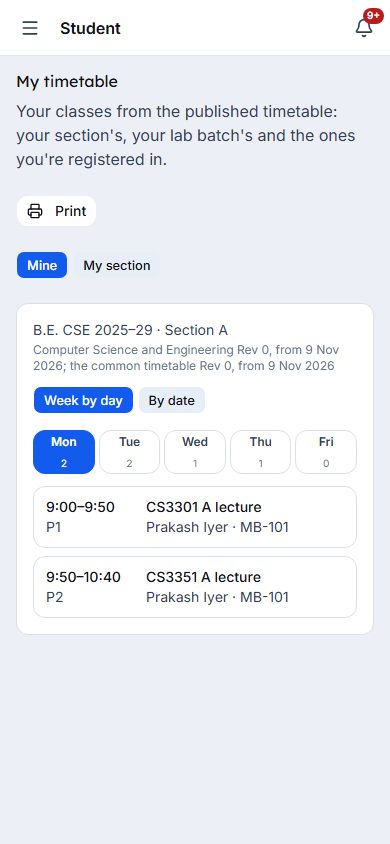
- Week by day: the usual week, day by day, with each period's time.
- By date: a real week, Monday to Sunday, with holidays and changed days. Use the arrows for The week before and The week after, and This week to come back.
Each class shows the course code, whether it's a lecture (L), and the teacher's initials and the room. On a phone, tap a day to see its classes.
Print your section's timetable
- Choose Print.
- In the print view, print it or save it as a PDF from your browser.
It prints your section's timetable.
What happens next
When your department publishes a change, you get a notification, "Your timetable changes", and My timetable shows the new one. Today's classes are also on Today, marked Now, Next or Done.
If something goes wrong
- "No classes today." on Today: there are none on your timetable today, or it's a holiday.
- "Couldn't load the timetable. Check your connection and try again.": you may be offline. Choose to try again when you're connected.
- A class is missing: check My courses. If you think you should be in a class, ask your class teacher.