Report something
If something in the app is ragging, harassment, a fake notice or against the community rules, report it. Ragging goes to the anti-ragging committee, sexual harassment to the Internal Complaints Committee (ICC), and the rest to the college's moderators. The person you report isn't told it was you.
Who can do this: everyone, for posts, replies and comments they can see, and for announcements sent to them.
Steps
- Find what you want to report:
- A post, reply or feed comment: open its actions (⋯) and choose Report…
- An announcement: open it, then choose Report it beside "Looks fake or misleading?"
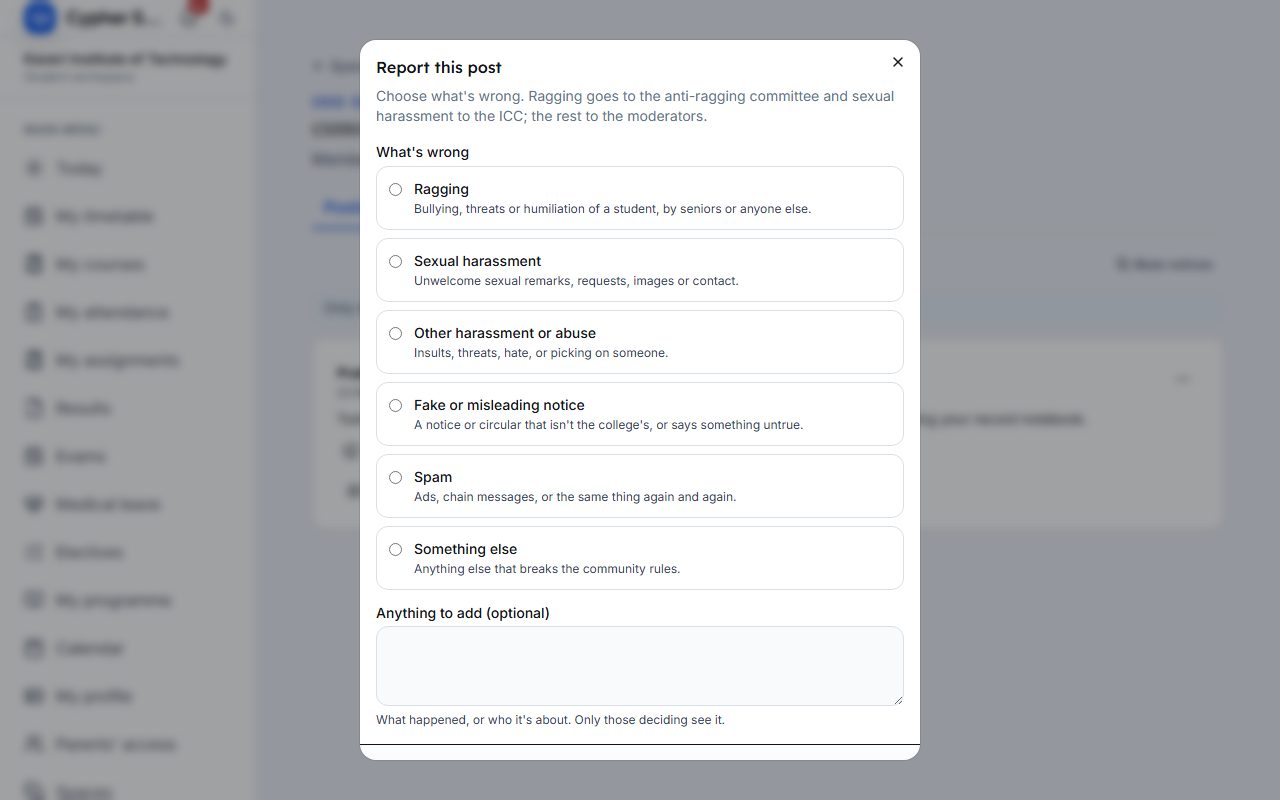
- Under What's wrong, choose one:
- Ragging: bullying, threats or humiliation of a student, by seniors or anyone else.
- Sexual harassment: unwelcome sexual remarks, requests, images or contact.
- Other harassment or abuse: insults, threats, hate, or picking on someone.
- Fake or misleading notice: a notice or circular that isn't the college's, or says something untrue.
- Spam: ads, chain messages, or the same thing again and again.
- Something else: anything else that breaks the community rules.
- In Anything to add (optional), say what happened, or who it's about. Only those deciding see it.
- Choose Report.
What happens next
Thanks for reporting it says who it went to, and the date they'll decide by. You're told the outcome, and the author isn't told who reported it. Some reports hide the post from others while it's looked at; it says so.
For some reports, such as ragging, it also shows the Help and safety numbers: "If you're in danger or need to talk to someone now:". See Get help.
Follow your reports
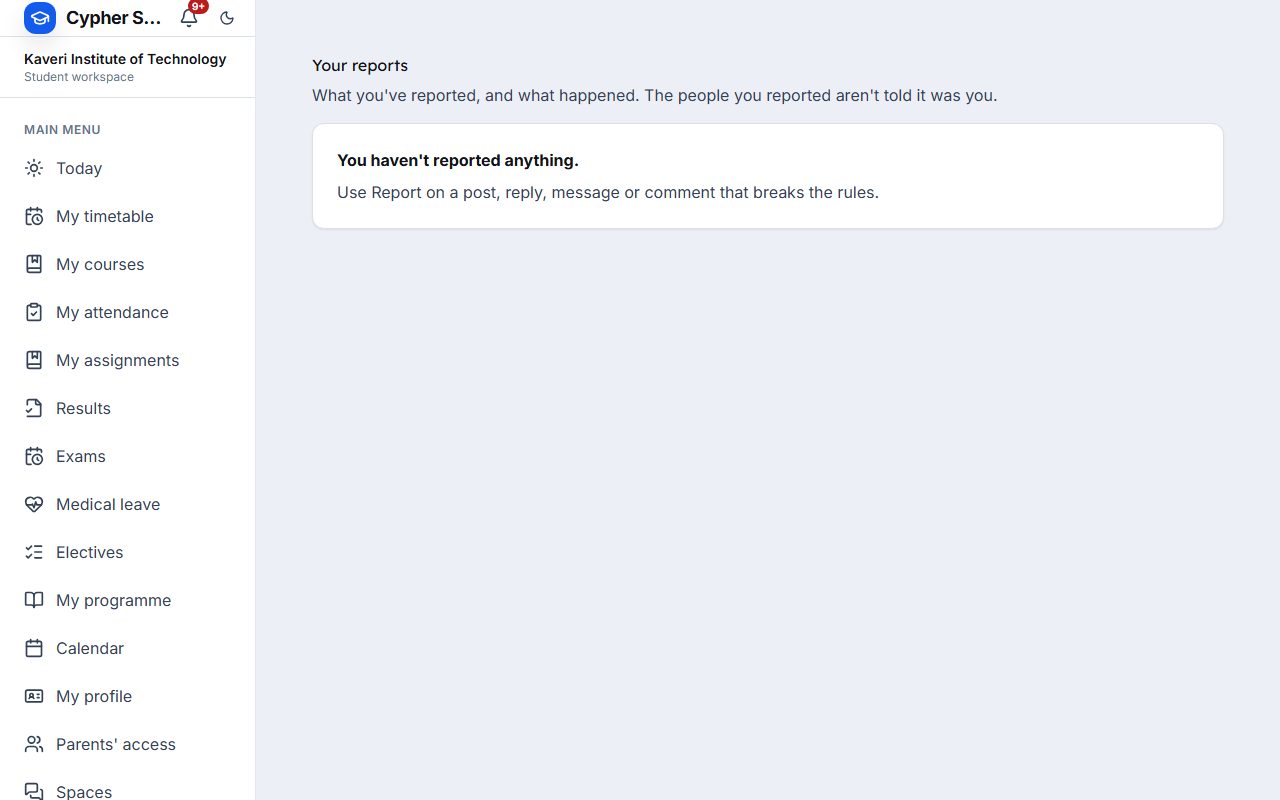
Your reports lists what you've reported and what happened: Received, Being looked at or Decided. Open it with Your reports in the Thanks for reporting it box, or from the notification about the outcome.
If you're in danger now, don't wait for a reply: call the numbers on the Help and safety card.
If something goes wrong
- The Report button says "Needs the network": you're offline. Connect, then report it.