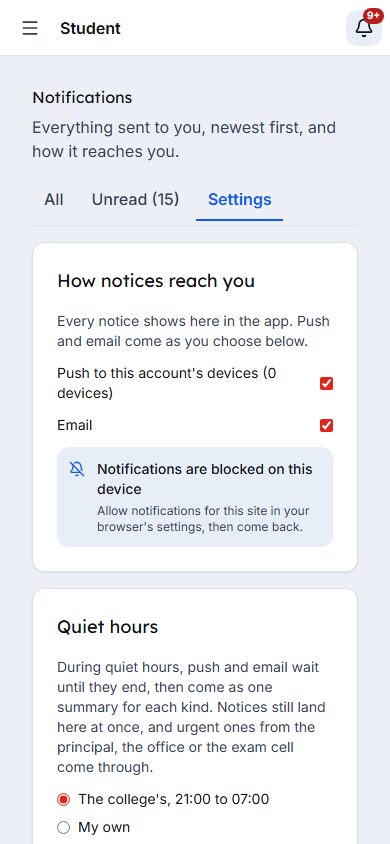
Choose how notifications reach you
Every notification shows in the app at once. Push notifications to your devices and emails come as you choose here, kind by kind, and wait during quiet hours.
Who can do this: everyone, for their own notifications.
Open your settings
- Open Notifications: choose See all notifications in the bell, or the settings icon in the bell.
- Choose Settings.
Each change saves at once and says so, for example "Push is on." or "Saved."
Push and email
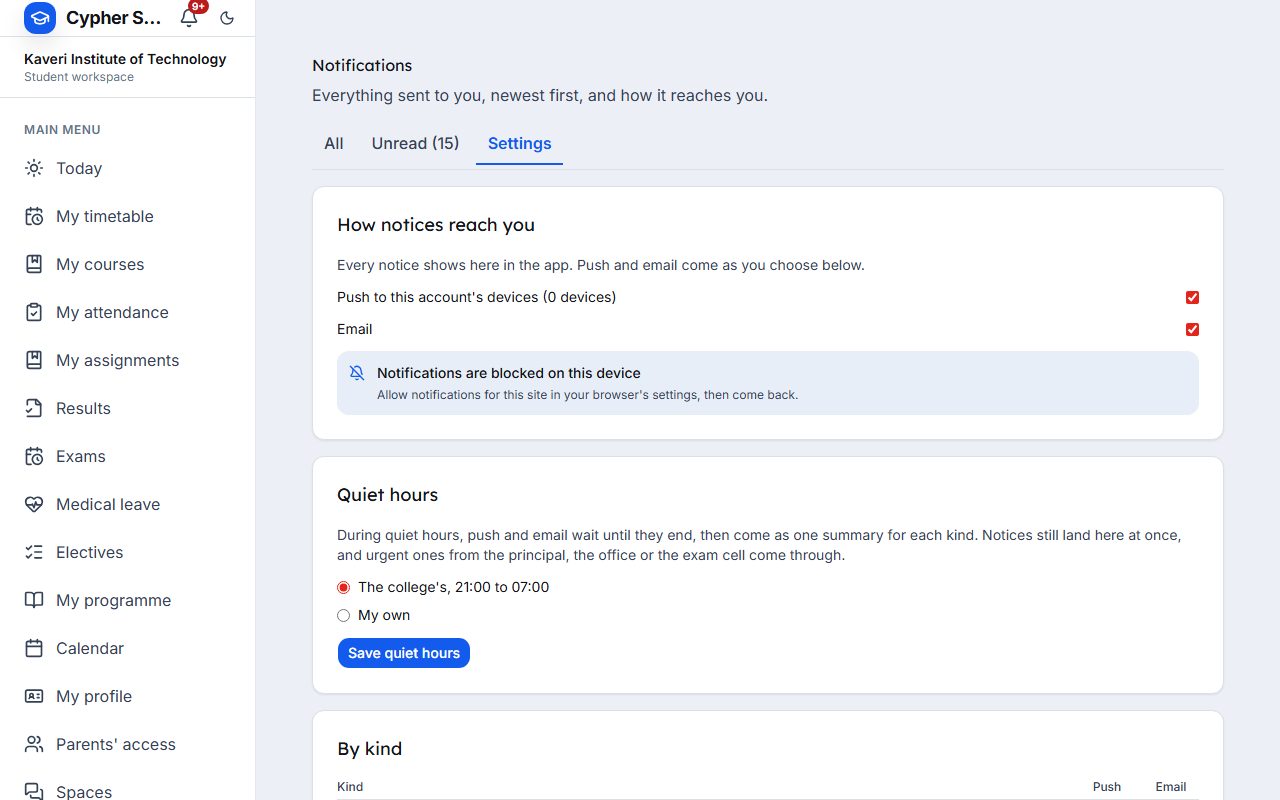
Under How notices reach you:
- Push to this account's devices sends notifications to every device where you turned push on. The number of devices is in brackets.
- Email sends them to your email too.
Untick either to stop it for every kind.
Turn on push for this phone or computer
Push works device by device. Below the tick boxes, the app says where this device stands:
-
If it says Get notifications on this device, choose Turn on.
-
When your browser asks, allow notifications.
It now says Notifications are on for this device.
Other things it can say:
- Notifications are blocked on this device: you refused them earlier. Allow notifications for this site in your browser's settings, then come back.
- Install the app to get notifications: on an iPhone or iPad, add Cypher to your Home Screen first. See Install the app on your phone.
- This browser can't show notifications: you still see everything in the bell. Chrome, Edge or the installed app can notify you.
- Couldn't turn on notifications: check your connection and choose Try again.
You can also turn push on from Account › This device.
Quiet hours
During quiet hours, push and email wait until they end, then come as one summary for each kind: "{number} notifications while quiet hours were on". Notifications still land in the app at once, and urgent ones from the principal, the office or the exam cell come through.
- Under Quiet hours, choose The college's (21:00 to 07:00 unless your college changed it), or My own.
- For My own, set From and To.
- Choose Save quiet hours.
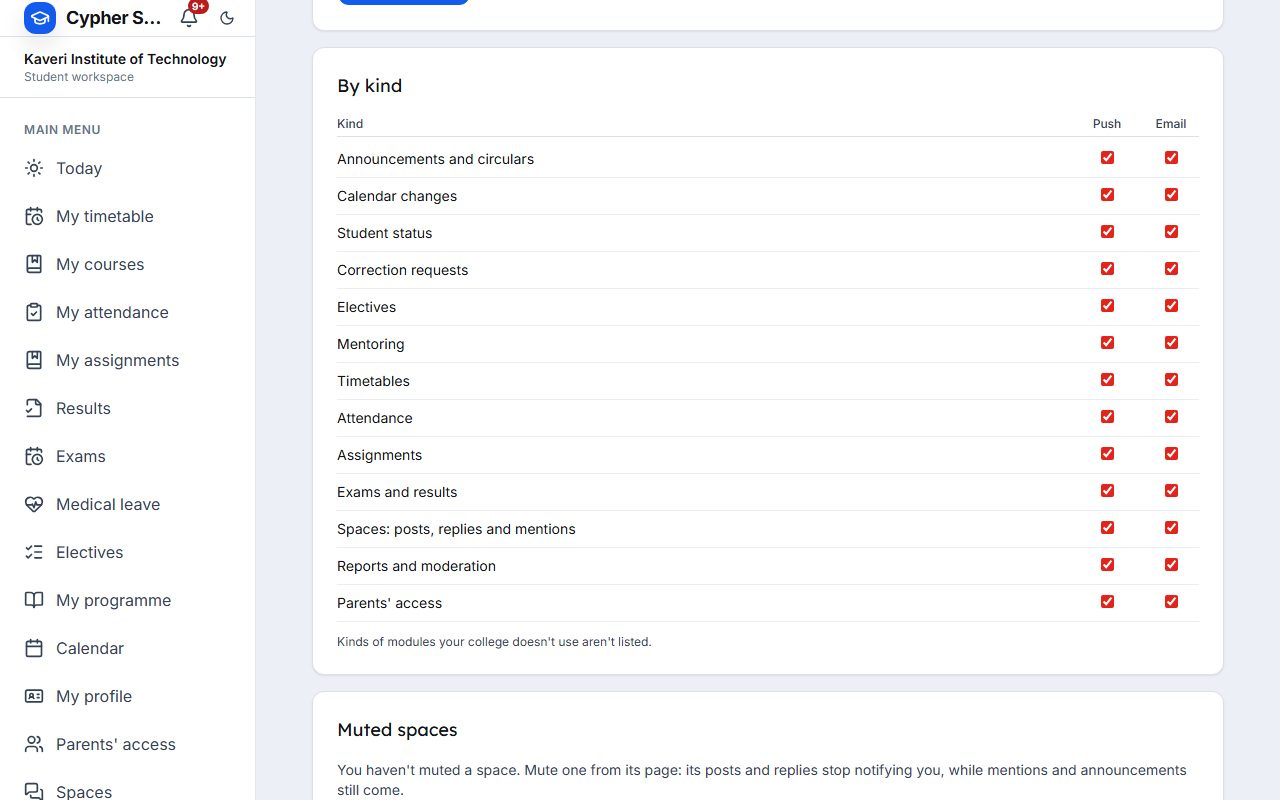
By kind
By kind lists each kind of notification, for example Announcements and circulars, Attendance, Assignments, Exams and results, Spaces: posts, replies and mentions and Parents' access.
- Untick Push or Email on a row to stop that kind coming that way. It still shows in the app.
- A column can't be changed while that way is off under How notices reach you.
Kinds of modules your college doesn't use aren't listed.
Muted spaces
If you muted a space from its page, it's listed under Muted spaces. Choose Unmute to get its notifications again. A muted space's posts and replies stop notifying you, while mentions and announcements still come.