Check your internal marks
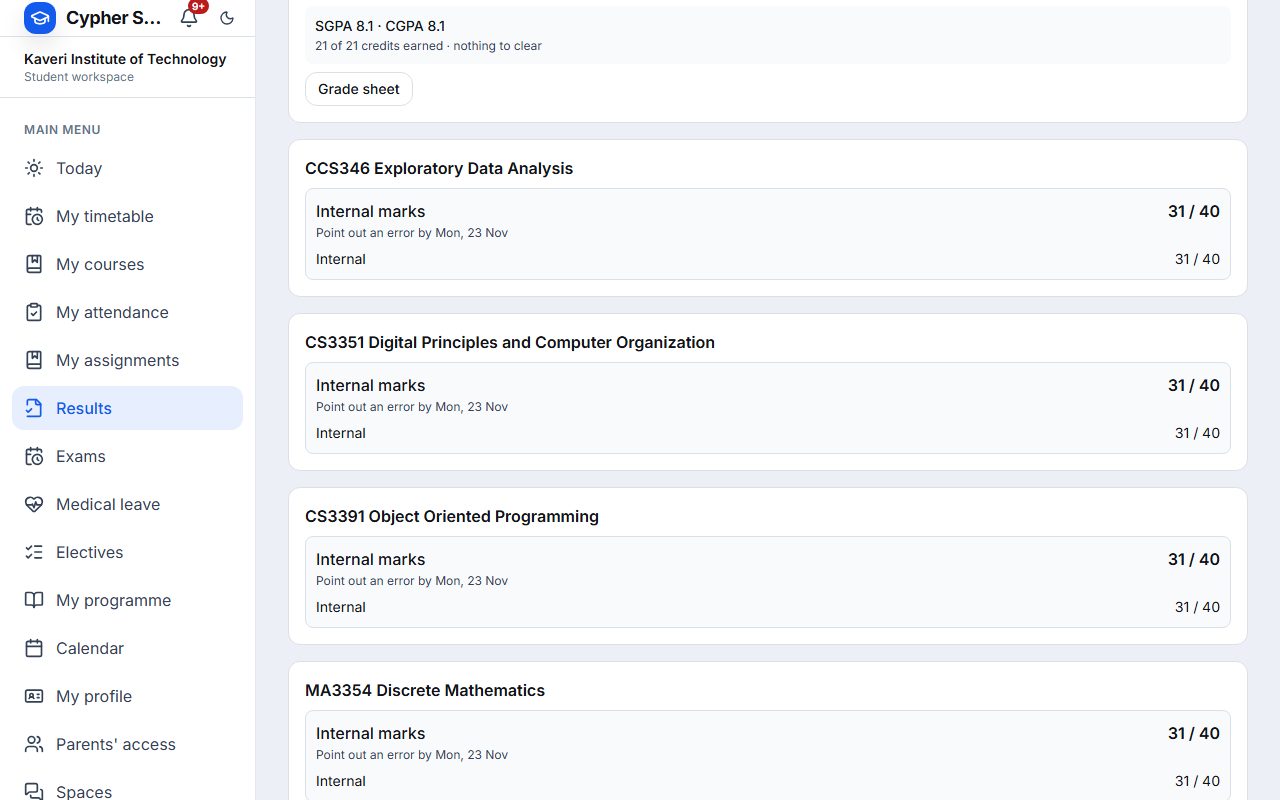
Once a course's internal marks are approved, Results shows each component and the total. You have a short window to point out an error before they're frozen for the exams.
Who can do this: students, for their own internal marks, once per course, while the window is open.
Steps
- In the menu, choose Results.
- Under each course of this term, read Internal marks: the total, for example 31 / 40, and each component's mark.
- Read the line under the title:
- Point out an error by {date}: the window is open.
- Approved: approved, and the window has closed.
- Final for the exams: frozen for the exams.
Point out an error
- Under the course's Internal marks, choose Point out an error.
- In What's wrong, say which mark looks wrong and why, for example "My viva was 9 out of 10, not 8."
- Choose Send it.
You can do this once per course.
What happens next
- The card shows "Your point is with your teacher", with what you said.
- When your teacher answers or corrects it, you get a notification ("{course}: your point about your internal marks is answered"). The card shows Answered or Corrected, with the answer. A corrected component says (corrected).
If something goes wrong
- There's no Point out an error: the window has passed, or you've already pointed out an error in that course. Ask your teacher.
- Your coursework marks look wrong: query the assignment's mark itself. See Query a mark.