Notifications about your child
The college tells you when something about your child needs a look: attendance below the line, missing work, results out, an announcement. A notification names your child, never a mark or a figure, because a family phone may show it to anyone. The figures are in the app.
Who gets them: parents and guardians with an account, about the areas they can see.
What you're told
| Notification | When |
|---|---|
| "New attendance update for {child}" | Their attendance first falls below the college's line, overall or in a course (once a semester for each), counted up to yesterday. |
| "{child}'s attendance this month" | Each month, while their attendance is below the line. |
| "{child} has work that's missing" | Each week, when they have work missing. |
| "Results are out for {child}" | The college publishes their results. |
| An announcement's title | The college, the department or a class teacher sends parents an announcement. |
| "There's a change to what you can see for {child}" | What you can see for that child changes, for any reason. |
| "There's a change to what parents can see" | The college changes what it shares with parents. |
| "A change for {child}'s records from {date}" | Your child turns 18 soon: from then, what you see depends on their choice. |
Choose a notification to open the page with the details.
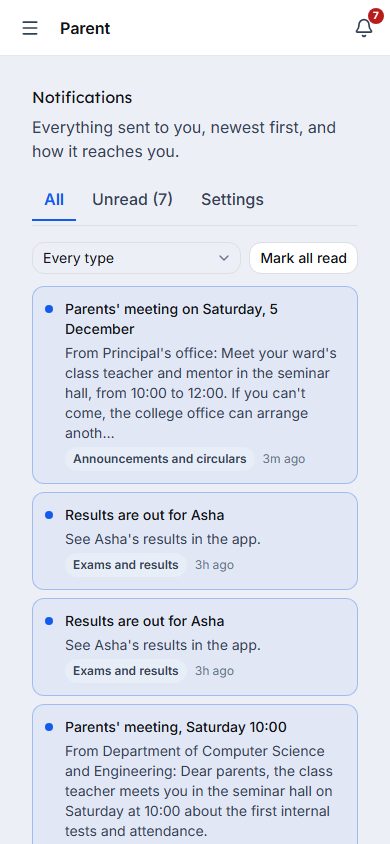
Choose how they reach you
Every notification shows in the app, in the bell and on Notifications. Push to your phone and email come as you choose.
- In the menu, choose Account.
- Under Notifications, set:
- How notices reach you: push to your devices, and email;
- Quiet hours: the college's (21:00 to 07:00 unless your college changed it) or your own. Push and email wait until they end;
- By kind: push and email for each kind, for example Attendance or Exams and results.
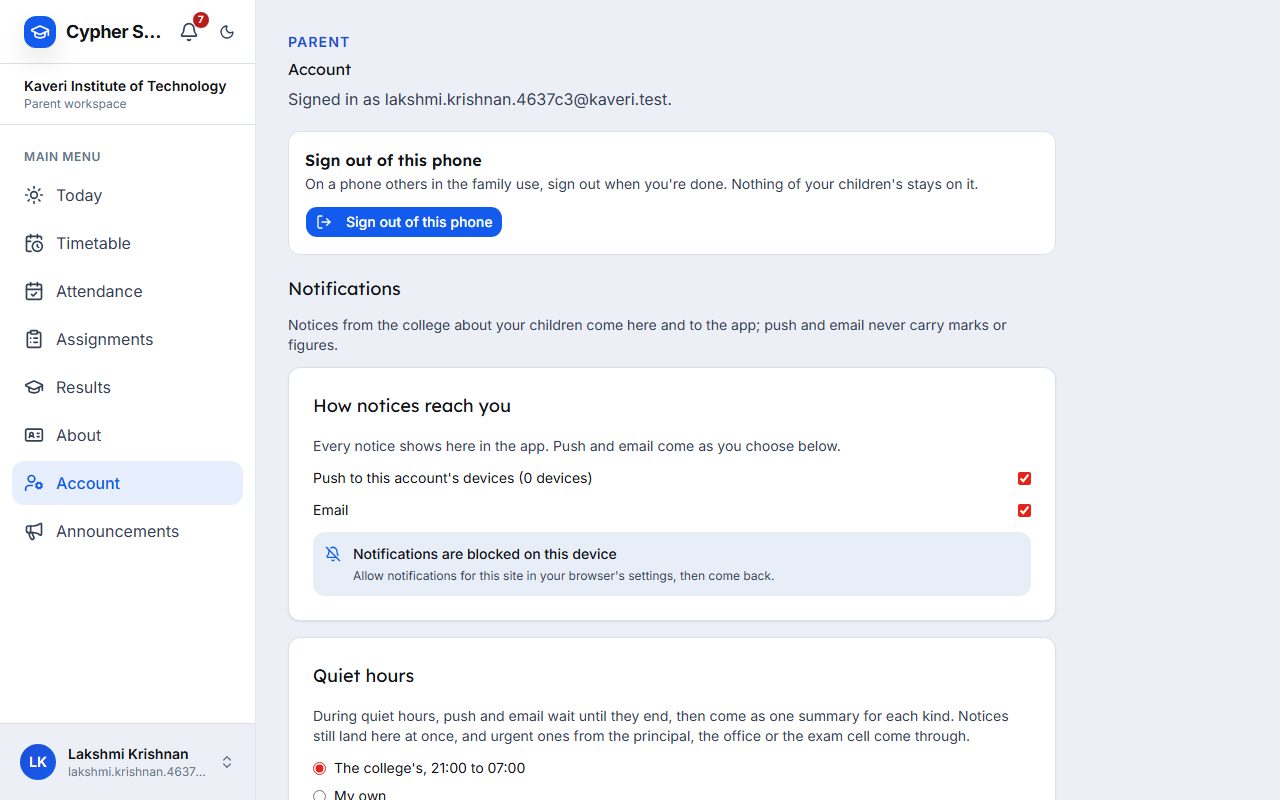
To get push on your phone, install the app and turn notifications on: see Install the app on your phone and Choose how notifications reach you.