Install the app on your phone
Installed, Cypher Syndicate opens from your home screen, full screen like any app, and can send you notifications. Nothing is downloaded from an app store: you add it from your phone's browser.
Who can do this: everyone, on an Android phone or an iPhone or iPad.
Before you start
- Sign in on your phone's browser: Chrome on Android, or Safari on an iPhone.
On an Android phone
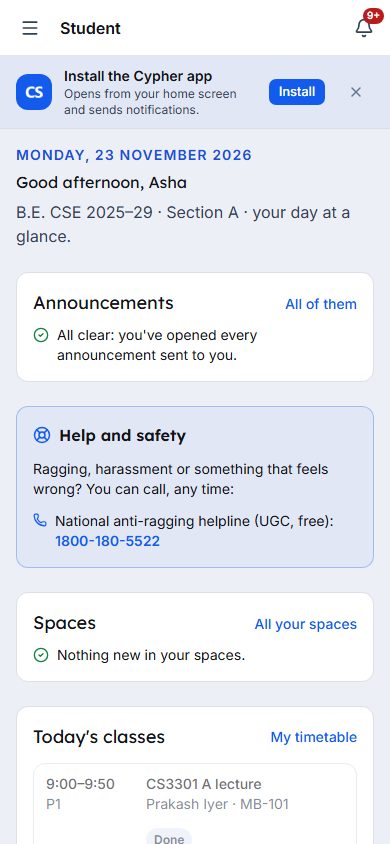
- After you sign in, look for the bar at the top: Install the Cypher app, "Opens from your home screen and sends notifications."
- Tap Install.
- When Chrome asks, confirm that you want to install it.
- Open Cypher from your home screen and sign in.
No bar? Open Chrome's menu (⋮) and choose Install app or Add to Home screen. Or open the account menu at the bottom of the side menu and choose Install app, when it's there.
On an iPhone or iPad
-
After you sign in in Safari, tap Install on the Install the Cypher app bar.
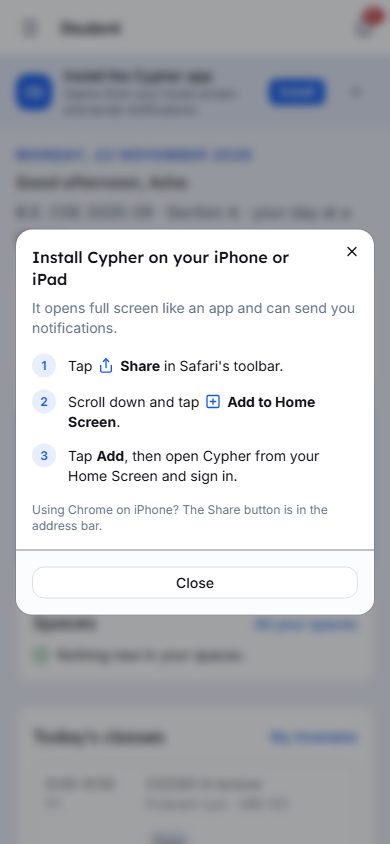
The steps open: Install Cypher on your iPhone or iPad.
-
Tap Share in Safari's toolbar.
-
Scroll down and tap Add to Home Screen.
-
Tap Add, then open Cypher from your Home Screen and sign in.
Using Chrome on an iPhone? The Share button is in the address bar.
On an iPhone or iPad, notifications work only once Cypher is on your Home Screen. Open it from there to turn them on.
What happens next
Open Cypher from its icon. To get notifications on this phone, see Choose how notifications reach you.
When the college's app is updated, a bar says New version available, "Reload to get the latest version." Choose Reload when you're ready.
If something goes wrong
- You closed the install bar: it doesn't come back on that phone. Use Install app in the account menu, or go to Account › This device, which tells you how to install it.
- Account › This device says "To install, open your browser's menu and choose Install app or Add to Home screen.": your browser didn't offer an install button. Use the browser's menu as it says.
- It says "You're using the installed app.": it's already installed on this phone.