Hand in work
Hand in an assignment from a computer or a phone: type your answer, add files, or photograph handwritten pages, then turn it in. The time the college receives it decides whether it's on time.
Who can do this: students, for work set in their courses that asks to be handed in online.
Before you start
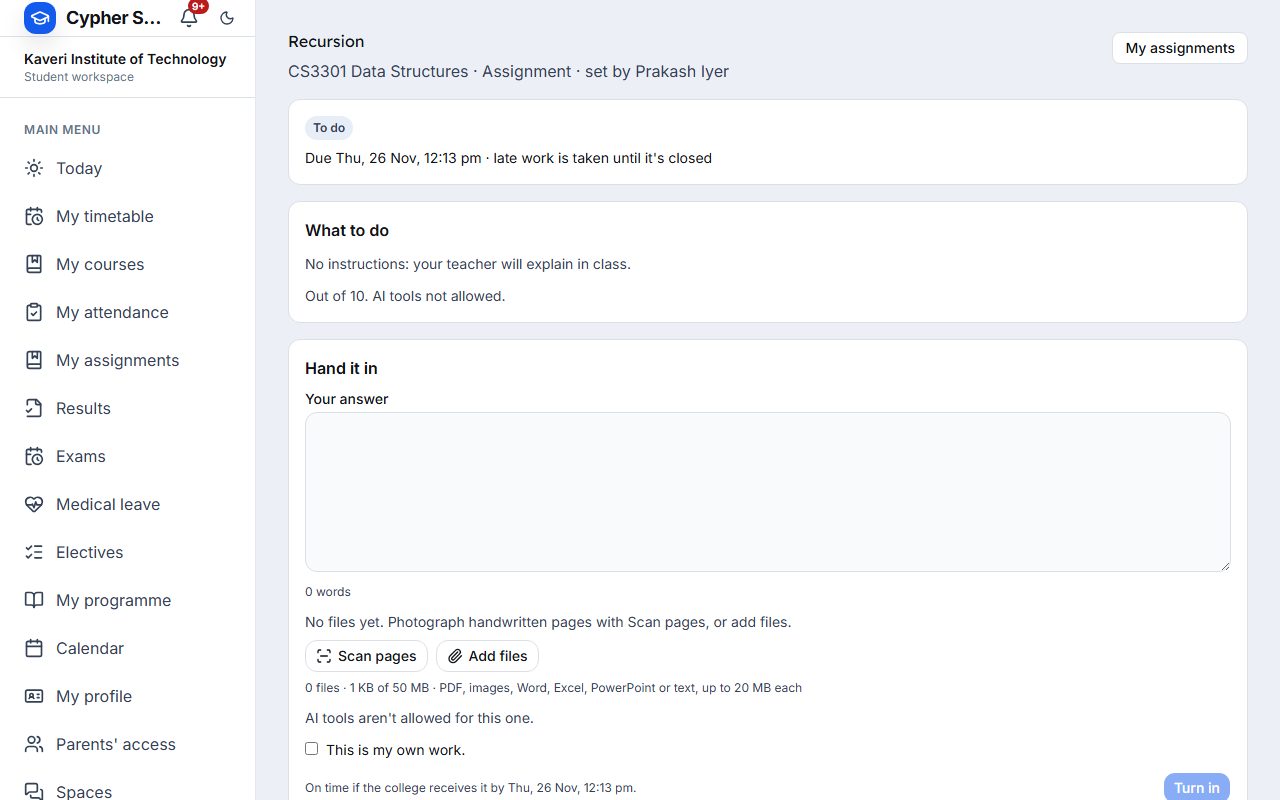
- Open the work from My assignments and read What to do: the instructions, the maximum marks, whether AI tools are allowed, and any files from your teacher.
- Check the due time at the top. It may say "late work is taken until it's closed", or give a cut-off after which nothing is taken.
Steps
- In the menu, choose My assignments, then choose the work.
- Under Hand it in, type your answer in Your answer, if there's anything to type. The word count is under it; if there's a word limit, it warns when you're over it, which your teacher will see.
- To add files, choose Add files. You can add PDFs, images, Word, Excel, PowerPoint or text files; the line under the buttons shows the limits, for example "up to 20 MB each" and the total.
- To hand in handwritten pages, choose Scan pages:
- Choose Take a photo for each page, in order, or Choose from gallery.
- Move, turn or remove pages until they're right. Up to 30 pages in one scan.
- Choose Done. The pages become one PDF on your phone, added to your files.
- Read the AI rule. If AI tools are allowed when you say how, describe it in How you used them.
- Tick This is my own work.
- Choose Turn in.
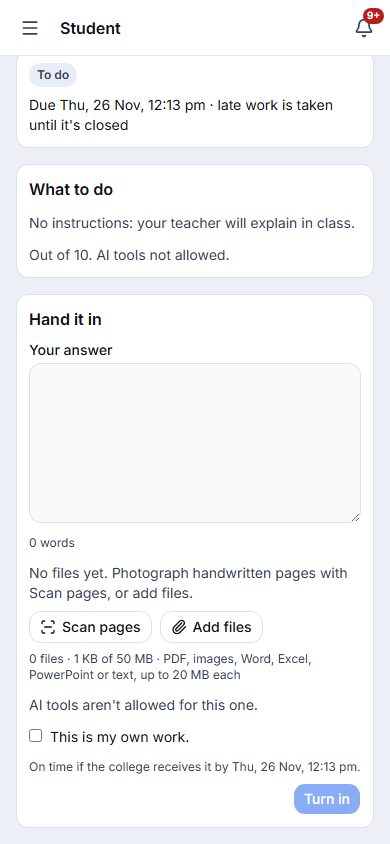
What you type and the files you add are kept on your phone as you go, so you can come back to it before turning it in.
What happens next
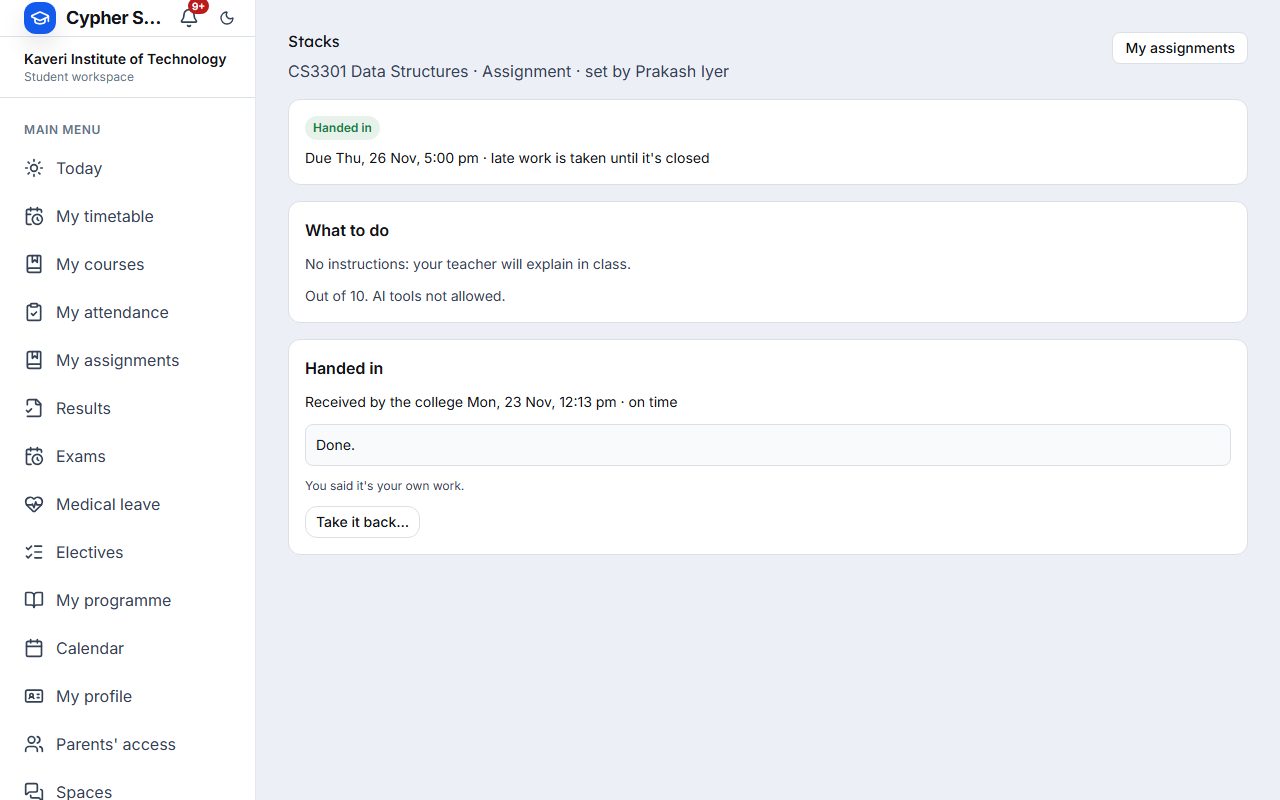
- Handed in shows when the college received it and whether it was on time, what you handed in, and "You said it's your own work."
- Your teacher marks it and returns it. You get a notification. See See your returned work.
- Until your teacher starts marking, you can take it back to change it. See Take back work you handed in.
If something goes wrong
- "It's past the due time: this will be marked late.": you can still turn it in until it's closed, but it's marked late. Your college may take marks off for late work.
- Turn in stays greyed out: add an answer or a file, tick This is my own work., and fill in How you used them if the work asks.
- "Together the files would be over …" or "Up to … files.": remove a file, or make one smaller.
- No connection: turn it in anyway. It waits on your phone and goes by itself. See Hand in without a connection.
- "Nothing to hand in" or "Hand in on paper" at the top: there's nothing to upload. Hand in on paper as your teacher says.