Switch workspace
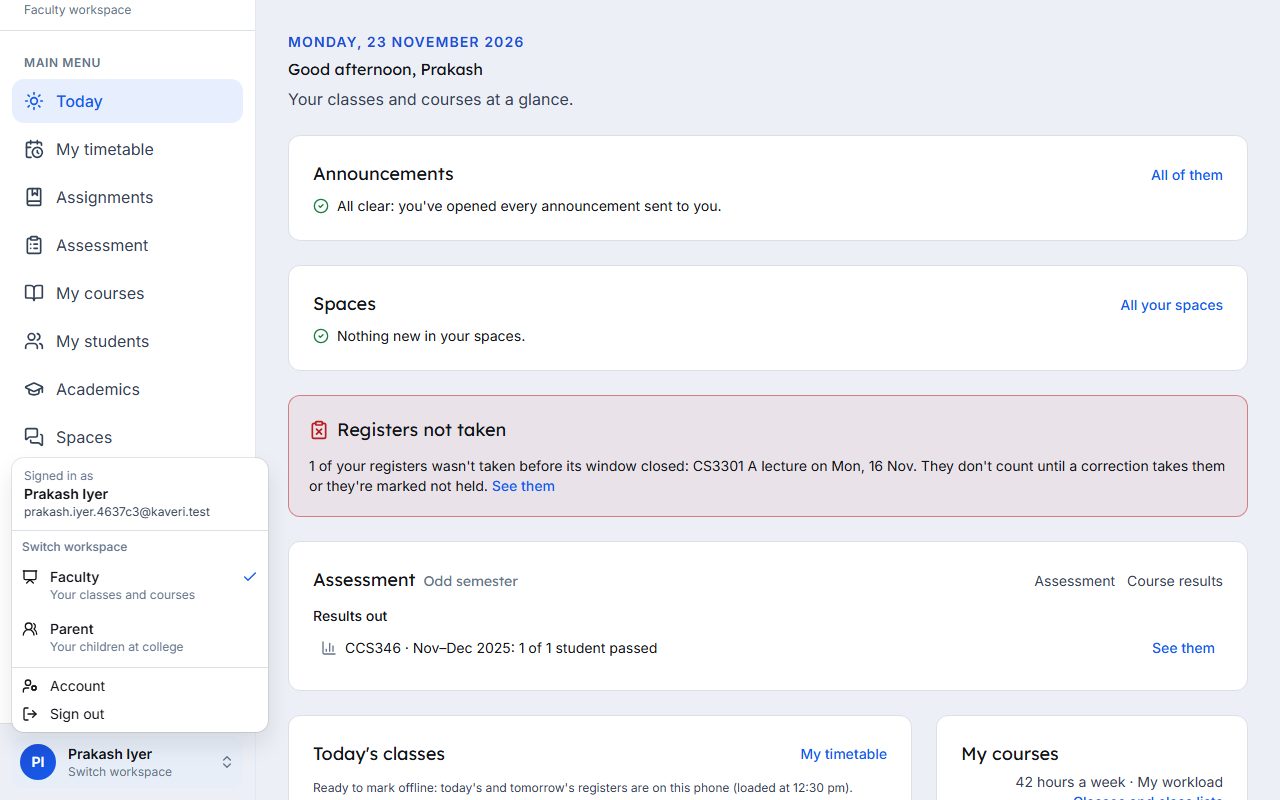
Each role has its own workspace: its own Today and menu. If you have two roles at the college, for example a teacher whose child studies there, you move between them with one account.
Who can do this: anyone with more than one role at the college. The workspaces are Management (run your institution), Faculty (your classes and courses), Student (your classes and results) and Parent (your children at college).
Steps
- Open the account menu: your name at the bottom of the menu. With two workspaces, it says Switch workspace under your name.
- Under Switch workspace, choose the workspace you want. A tick marks the one you're in.
What happens next
You land on that workspace's Today, and the menu shows its pages. Your notifications and your account are the same in every workspace.
If something goes wrong
- There's no Switch workspace: you have one role at the college. If you should have another, for example you're a parent of a student here, ask the college office.
Related
- Find your way around
- Your account: it lists your workspaces