Reset a forgotten password
If you've forgotten your password, ask for a reset link by email and choose a new one.
Who can do this: anyone with an account. You need to be able to open the email the college has for you.
Steps
-
On the sign-in page, choose Forgot password?
-
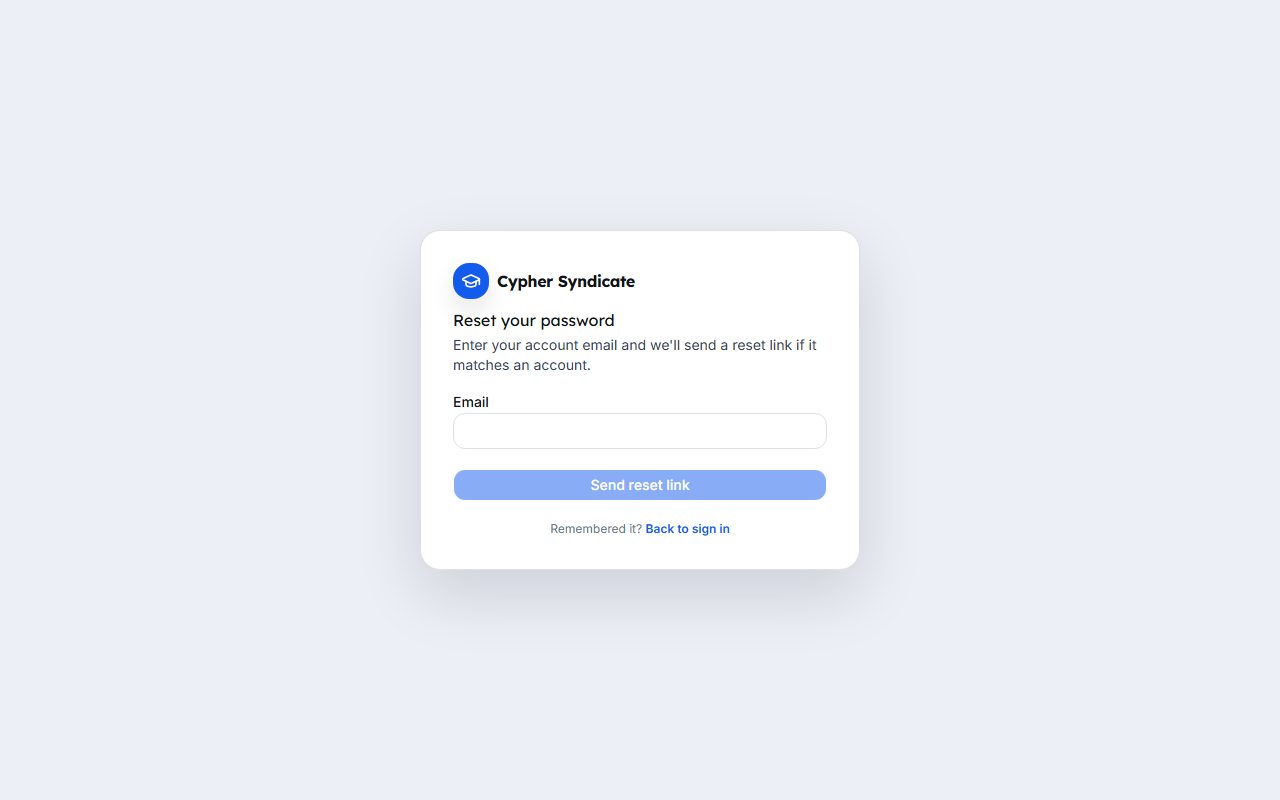
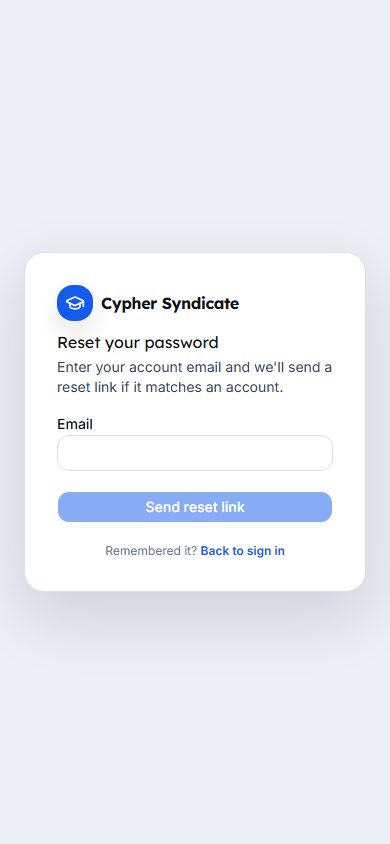
In Email, enter your account's email.
-
Choose Send reset link.
The page says: "If an account exists for {your email}, a reset link is on its way. The link is valid for 15 minutes."
-
Open the email Reset your password and select the link in it, within 15 minutes.
-
On Choose a new password, enter your new password in New password and again in Confirm new password.
Your password needs 12 or more characters, with an uppercase and a lowercase letter, a number, and a symbol such as ! or #.
-
Choose Update password.
-
Choose Sign in with your new password, and sign in.
What happens next
Your password is changed, and every device that was signed in to your account is signed out. Sign in again on each one with the new password.
If something goes wrong
- No email arrives: check your spam folder. The page says the same thing whether or not the email matches an account, so check you typed the email the college has for you. If you ask again within a minute, no second email is sent: wait a minute, then ask again.
- "This link is invalid or has expired — request a new one.": the link is older than 15 minutes, or it was used already. Choose Forgot password? again.
- "Passwords don't match.": type the same password in both fields.
- You can't open that email any more: ask the college office for help.
Related
- Sign in
- Change your password, when you know your current one