Read your notifications
Everything the college sends you lands in the app at once: results out, work returned, an announcement, a change to your timetable. The bell shows the newest; the Notifications page keeps them all.
Who can do this: everyone.
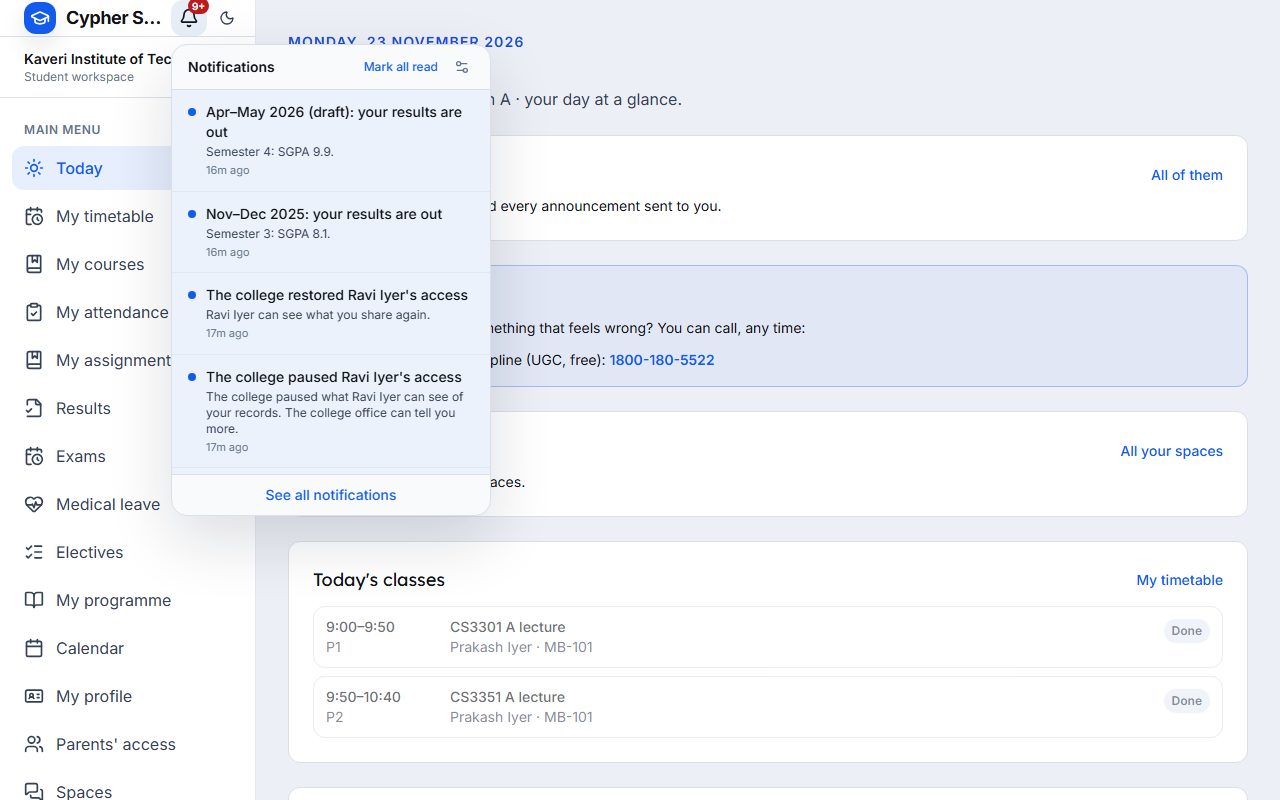
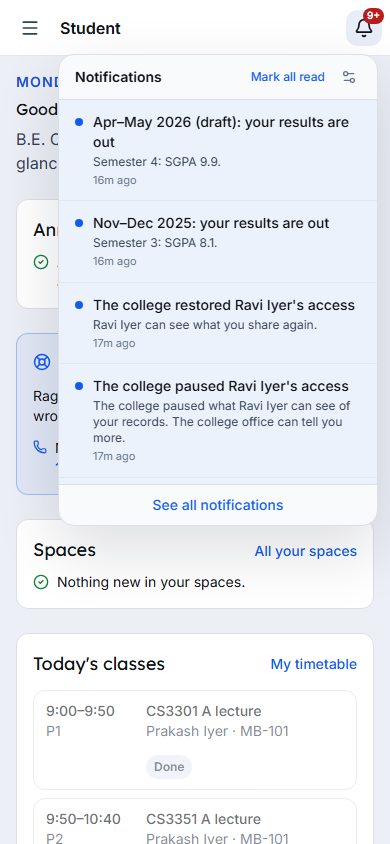
The bell
- Choose the bell at the top of the page. Its badge counts the notifications you haven't read (9+ for more than nine).
- Choose a notification to open what it's about. It's marked read.
- To mark them all read, choose Mark all read.
- To see older ones, choose See all notifications.
The settings icon beside Mark all read opens your notification settings.
The Notifications page
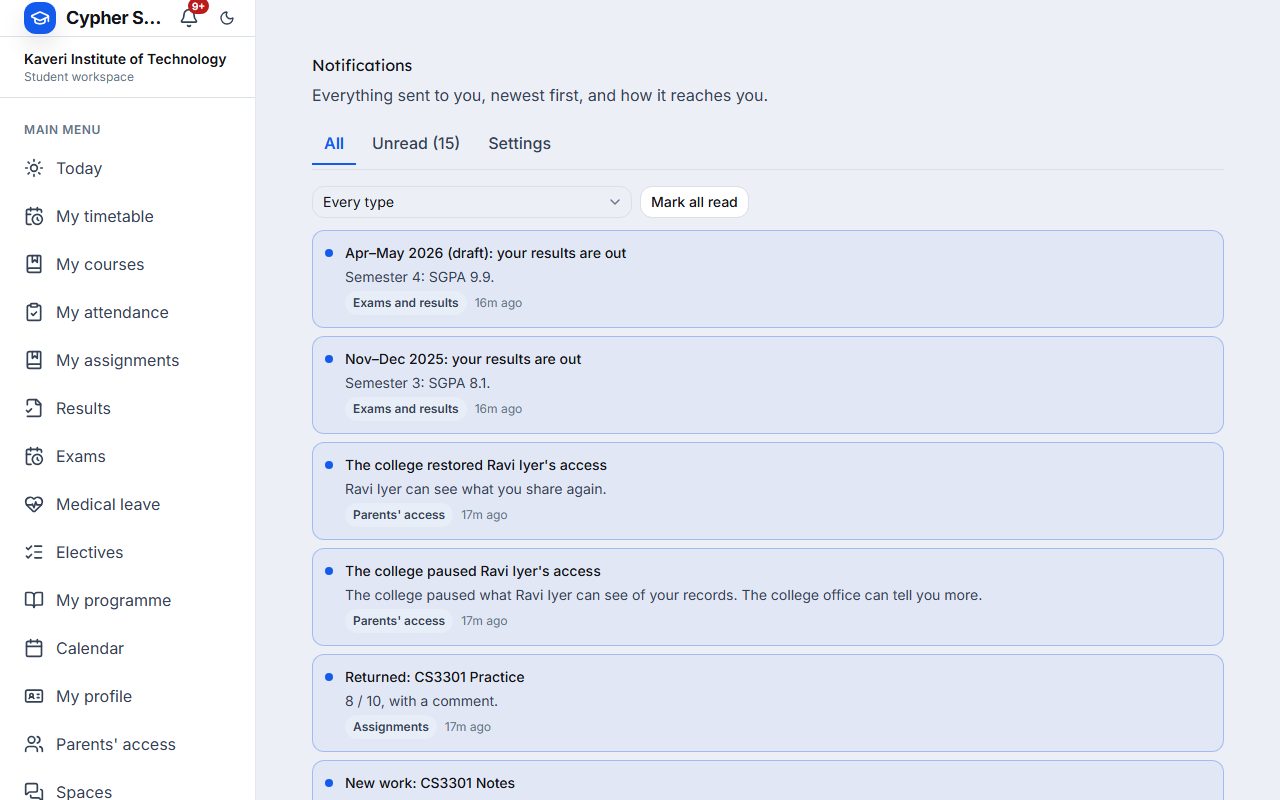
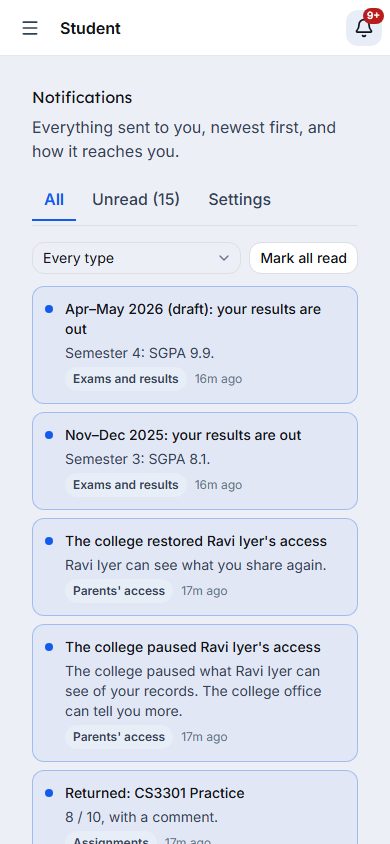
Notifications shows "Everything sent to you, newest first, and how it reaches you."
- All lists every notification; Unread only those you haven't read, with their count.
- Every type narrows the list to one kind, for example Exams and results or Assignments. Each notification shows its kind.
- Mark all read marks every one read.
- Show earlier, at the bottom, loads older notifications.
- Settings is where you choose how notifications reach you. See Choose how notifications reach you.
What happens next
Push notifications to your phone, and emails, come as you choose in Settings. Several of the same kind can come together: for example, a space's new posts in 15 minutes come as one notification.
If something goes wrong
- "You're all caught up." in the bell, or "No notifications yet." on the page: nothing has been sent to you yet.
- "Get notifications on this device" at the top of the bell: push isn't on for this device. Choose Turn on, or Not now. See Choose how notifications reach you.