Change a starting password
Sometimes the college office gives you a starting password instead of an email invitation. The first time you sign in with it, you choose a password only you know.
Who can do this: anyone the college office added with a starting password.
Before you start
- The college's institution code, your email and the starting password the office gave you.
Steps
-
Sign in with your institution code, your email and the starting password.
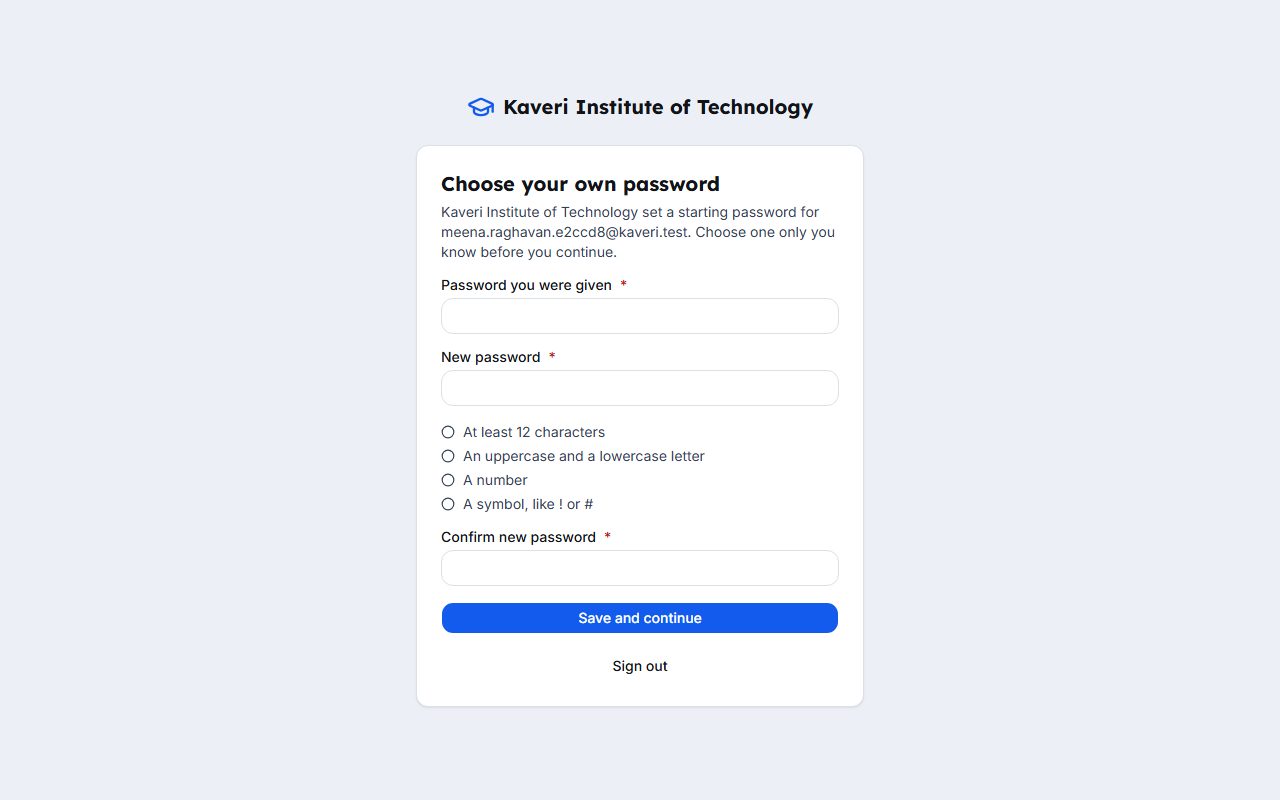
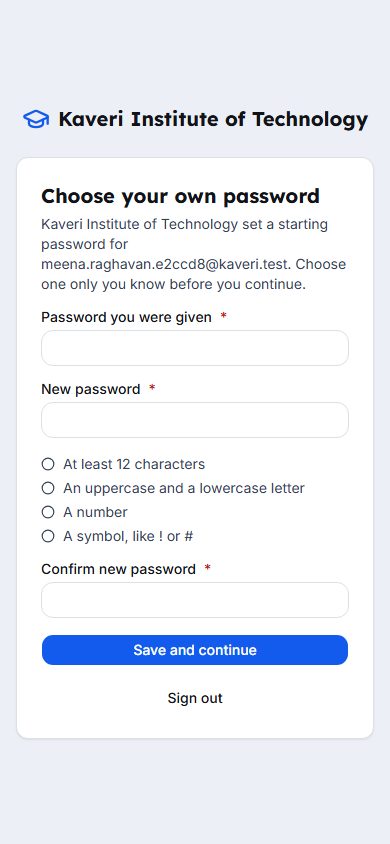
Instead of your home page, you see Choose your own password.
-
In Password you were given, enter the starting password.
-
In New password, enter a new password. It must meet every rule in the list under it:
- At least 12 characters
- An uppercase and a lowercase letter
- A number
- A symbol, like ! or #
-
Enter it again in Confirm new password.
-
Choose Save and continue.
What happens next
Your new password replaces the starting one, and you're signed in to your home page, Today. From now on, sign in with your new password.
If the page instead takes you to sign in with the note "Your password is changed. Sign in with your new password.", sign in with the new password.
If something goes wrong
- "Enter the password you were given.": fill in Password you were given.
- "Your new password doesn't meet every rule below.": change it until every rule is ticked.
- "Choose a password different from the one you were given.": your new password must not be the starting password.
- "The passwords don't match.": type the same new password in both fields.
- You can't continue now: choose Sign out. You'll see this page again next time you sign in.
Related
- Sign in
- Change your password, any time later