Find your way around
Every role has its own home page, Today, and a menu of the pages it uses. This page shows where things are.
Who this is for: everyone. The screenshots show a student, Asha; your menu shows your own role's pages.
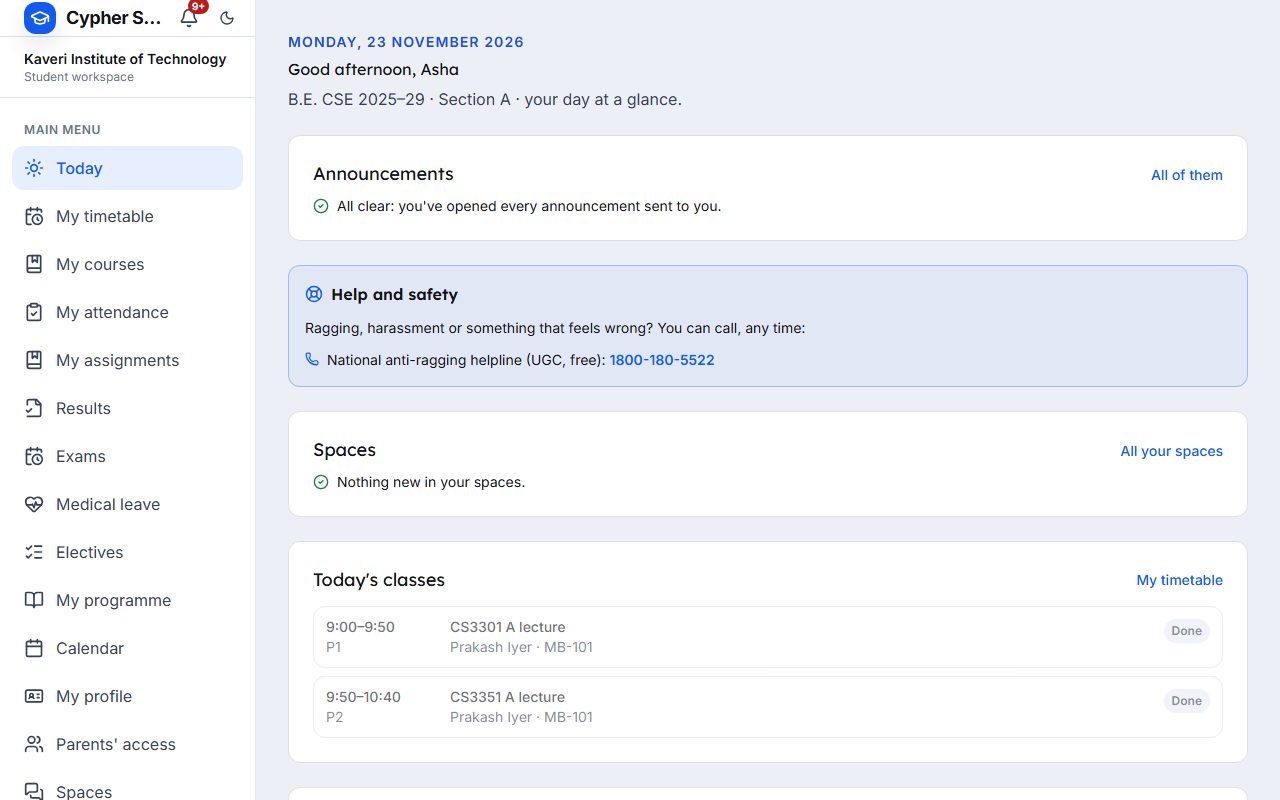
Today, your home page
Today answers "what do I need to do now?" for your role. A student sees, for example, new announcements, the Help and safety card, their spaces, today's classes, exams and results, work due, and attendance. A teacher sees today's classes, the registers to take, and their courses.
Each card links to its full page, for example All of them for announcements or My timetable for classes.
The menu
- On a computer, the menu is down the left side. At its top are your college's name and your workspace, for example Student workspace.
- On a phone, tap Open menu (☰) at the top left. Tap a page to go there, or the × to close the menu.
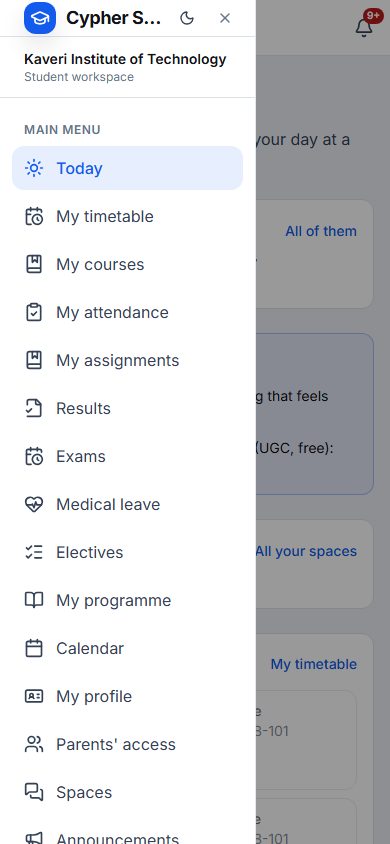
The pages in your menu depend on your role and on what your college uses. If you can't find a page someone mentions, it may belong to another role.
The top of the page
- The bell shows your notifications, with a count of those you haven't read. See Read your notifications.
- The moon or sun switches between the dark and the light look.
The account menu
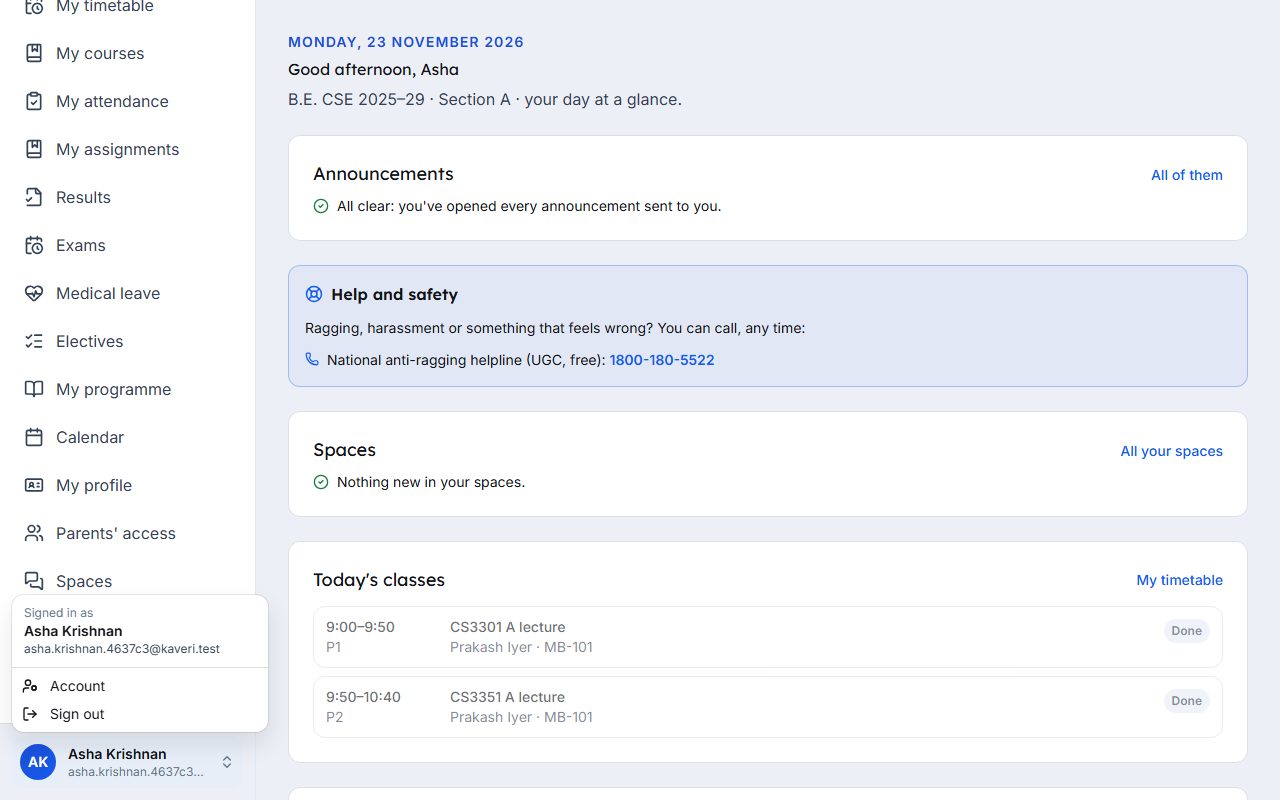
At the bottom of the menu, your name opens the account menu. It shows who you're signed in as, and has:
- Account: your profile and sign-in settings. See Your account.
- Sign out.
- Switch workspace, if you have two roles at the college. See Switch workspace.
- Install app, when your phone can install it. See Install the app on your phone.