Change your password
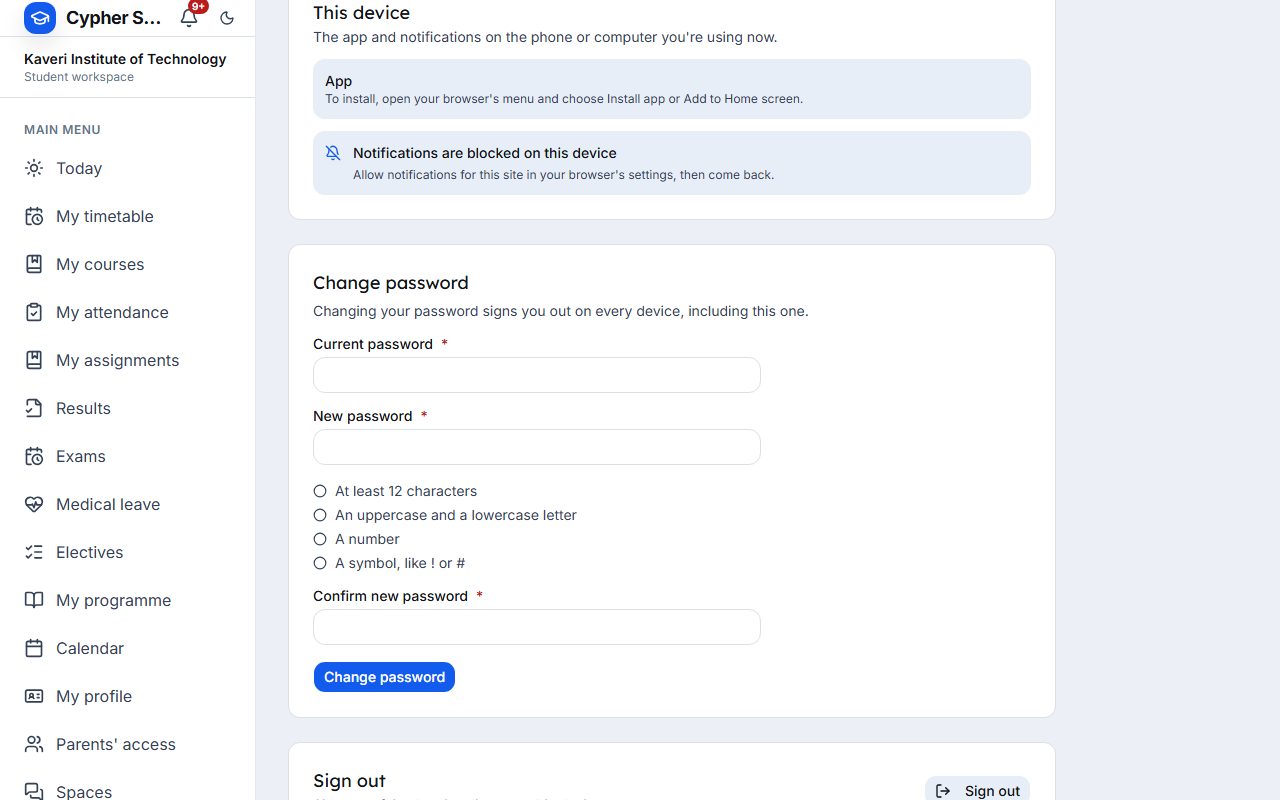
Change your password when you know your current one. It also signs you out on every device, which is how to sign out of a phone you no longer have.
Who can do this: everyone, for their own account. Forgotten your password? See Reset a forgotten password instead.
Steps
- Open the account menu (your name at the bottom of the menu) and choose Account.
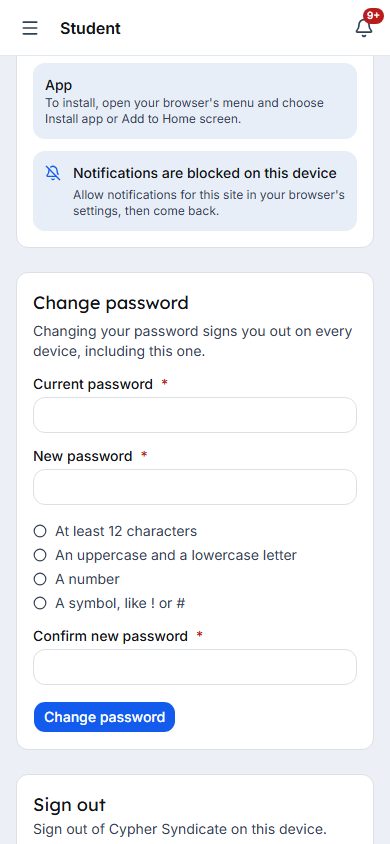
- Under Change password, enter your Current password.
- Enter a New password. It must meet every rule in the list under it:
- At least 12 characters
- An uppercase and a lowercase letter
- A number
- A symbol, like ! or #
- Enter it again in Confirm new password.
- Choose Change password.
What happens next
The sign-in page says: "Your password was changed and every device was signed out. Sign in with your new password." Sign in again on each device you use.
If something goes wrong
- "Enter your current password.": fill in Current password.
- "Current password is incorrect": check it and try again. If you've forgotten it, reset it.
- "Your new password doesn't meet every rule below.": change it until every rule is ticked.
- "Choose a password different from your current one.": the new password must not be the same as the old one.
- "The passwords don't match.": type the same new password in both fields.