Accept an invitation
Your college invites you by email. Accepting the invitation sets up your account and signs you in.
Who can do this: the person the invitation was sent to: staff, students and parents.
Before you start
- Find the invitation email from your college. The link in it works for 14 days, or 7 days for a parent's invitation. The page tells you the last date.
- Use the newest email if you got more than one: a new invitation replaces the old link.
Steps
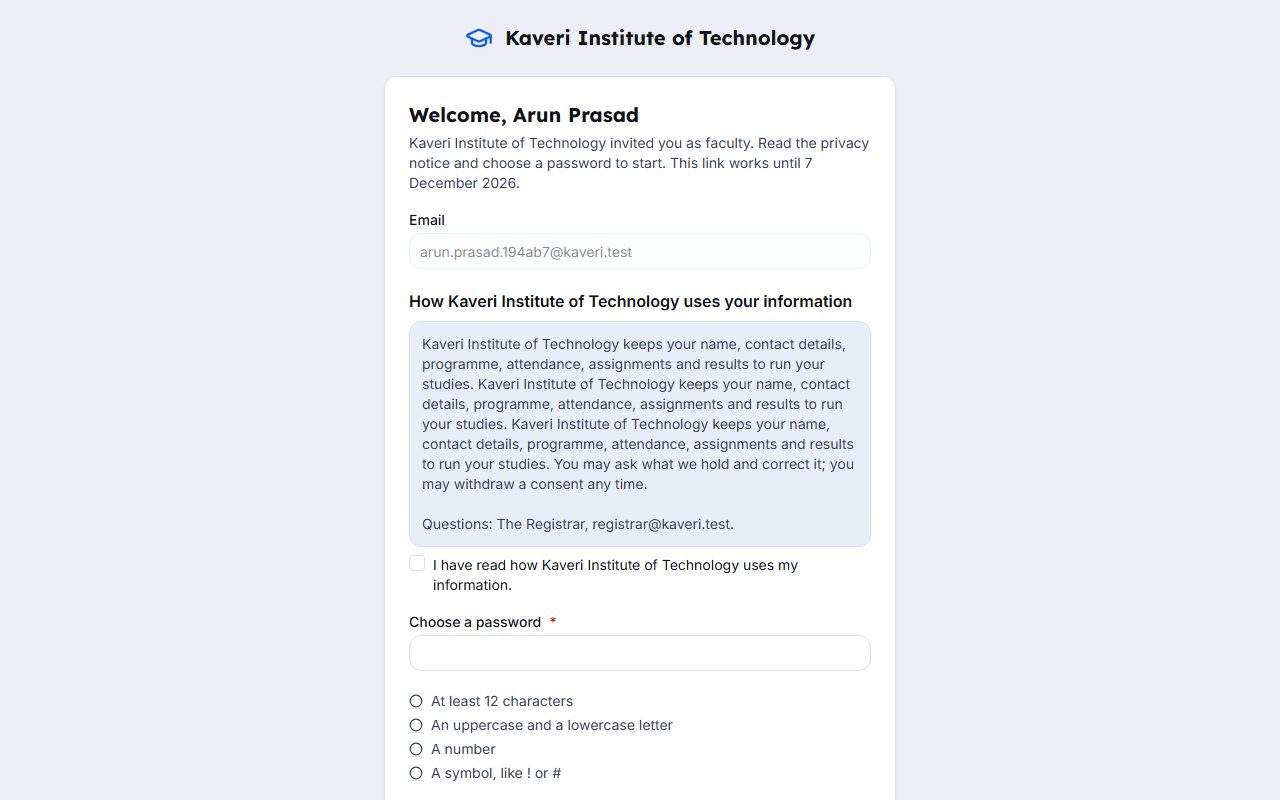
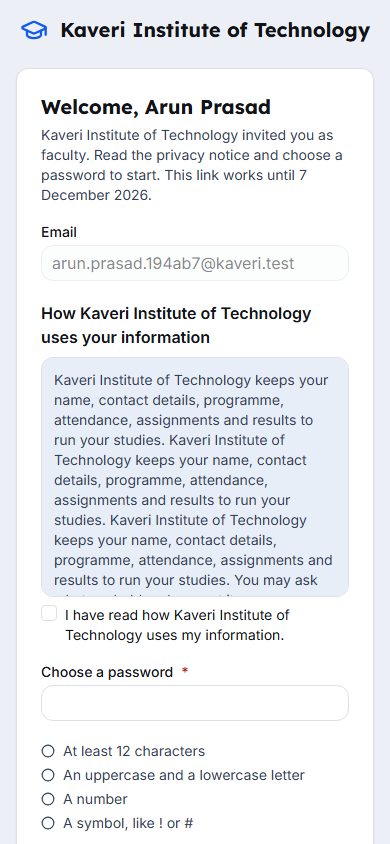
- Open the email and select the link in it. The page opens with your college's name and "Welcome, {your name}".
- Check the Email. It's the address the college has for you, and you can't change it here.
- If the page shows How {your college} uses your information, read it, then tick I have read how {your college} uses my information.
- If you're a student and the page asks May the college keep your parent or guardian informed?, choose Yes, keep them informed or No, only me.
- In Choose a password, enter a password. The list under it ticks each rule as you meet it:
- At least 12 characters
- An uppercase and a lowercase letter
- A number
- A symbol, like ! or #
- Enter it again in Confirm password.
- Choose Accept and sign in.
What happens next
You're signed in and land on your home page, Today. The device remembers your college's institution code for next time. See Find your way around.
If you already have an account
If your email already has an account with Cypher Syndicate, the page says so. Enter that account's password in Your password and choose Join {your college}. Your name and password stay as they are. Forgotten the password? Choose Reset your password, then open the invitation link again.
If something goes wrong
The page says what's wrong:
- "This invite has expired": ask the college office to send a new one.
- "There's a newer invite": a newer email replaced this link. Use the link in the latest email.
- "You've already accepted": the invitation was used. Choose Go to sign in and sign in with your email and password.
- "This invite was withdrawn": the college withdrew it. Ask the office if you think it's a mistake.
- "This link doesn't work": check you opened the whole link from the email, or ask the college to send a new one.
- "Your password doesn't meet every rule below.": change the password until every rule is ticked.
- "The passwords don't match.": type the same password in both fields.
- "Read the privacy notice, then tick that you have.": tick the box under the notice.
Related
- Sign in
- Change a starting password, if the college gave you a password instead of an email
- Install the app on your phone