Sign in
Sign in to reach your college's work: your classes, results, announcements and everything else your role covers.
Who can do this: everyone with an account at the college. Signing in for the very first time? Accept your invitation first (below).
Before you start
You need three things:
- Your college's institution code. It's your college's sign-in code, a short name joined by hyphens. The college office gives it to you. If you accepted an invitation on this device, it's already filled in.
- Your email: the one the college has for you.
- Your password.
Steps
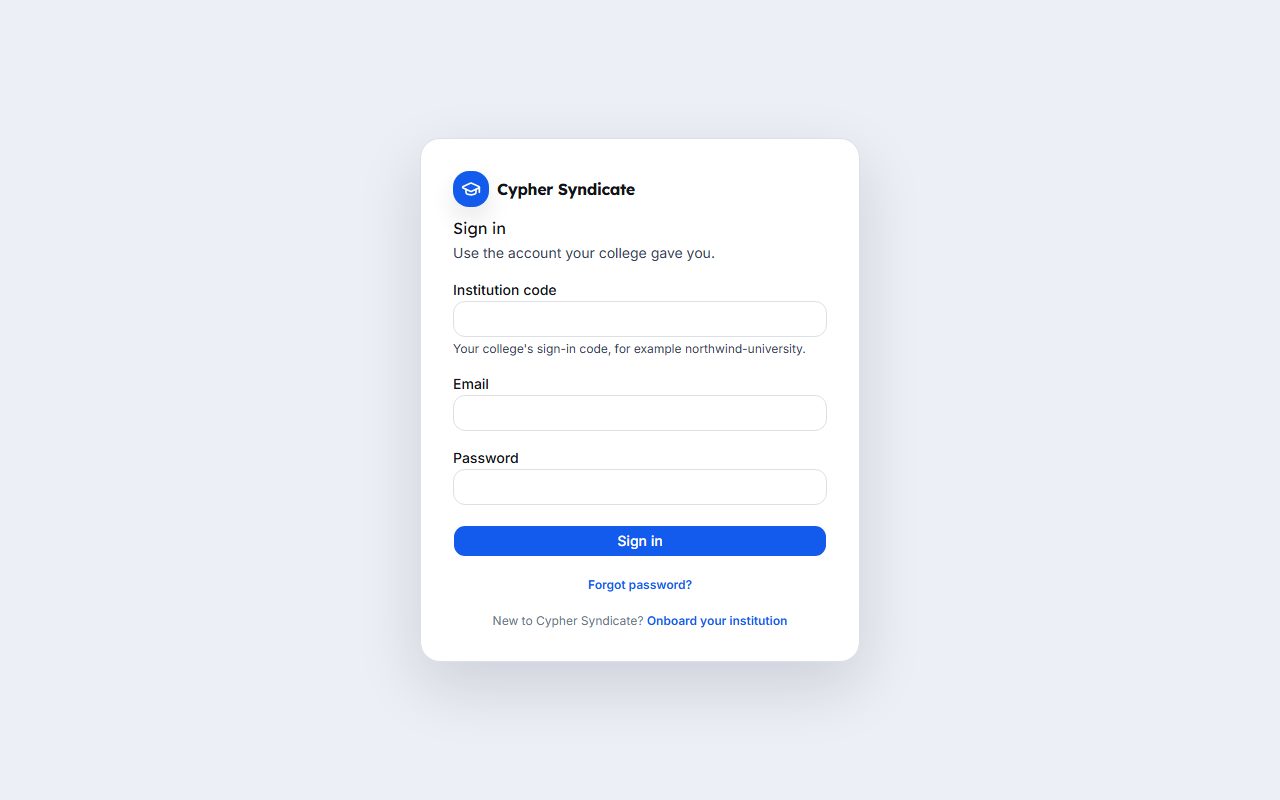
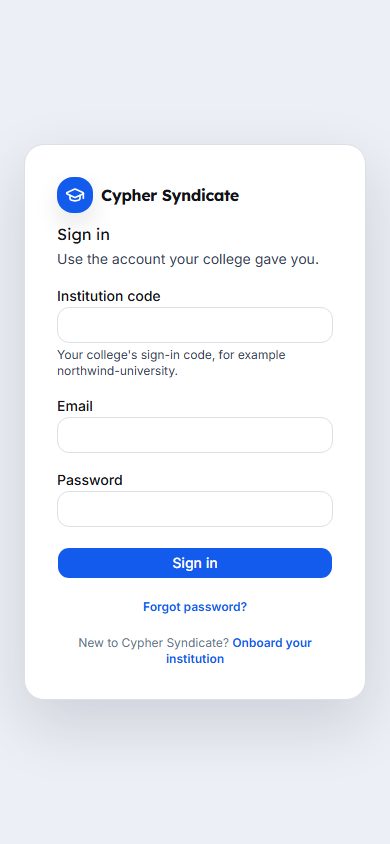
- Open Cypher Syndicate in your browser, or tap its icon on your phone's home screen.
- In Institution code, enter your college's code.
- In Email, enter your email.
- In Password, enter your password.
- Choose Sign in.
What happens next
You land on your home page, Today. The device remembers your institution code, so next time you only enter your email and password. See Find your way around.
If you have two roles at the college, for example a teacher who is also a parent, you can move between them. See Switch workspace.
If something goes wrong
- "Invalid credentials": the institution code, the email or the password is wrong. Check all three and try again. For safety, the message doesn't say which one.
- "Invalid credentials" after several tries: after 5 wrong passwords in 15 minutes, sign-in is blocked for that email for a while, even with the right password. Wait 15 minutes, then try again, or reset your password.
- "This organization's account is suspended. Contact support.": your college's account is switched off. Tell the college office.
- You've forgotten your password: choose Forgot password? on the sign-in page. See Reset a forgotten password.
- You don't know your institution code: ask the college office.
note
Onboard your institution, at the bottom of the sign-in page, is for registering a new college. You don't need it to sign in.