Check the academic calendar
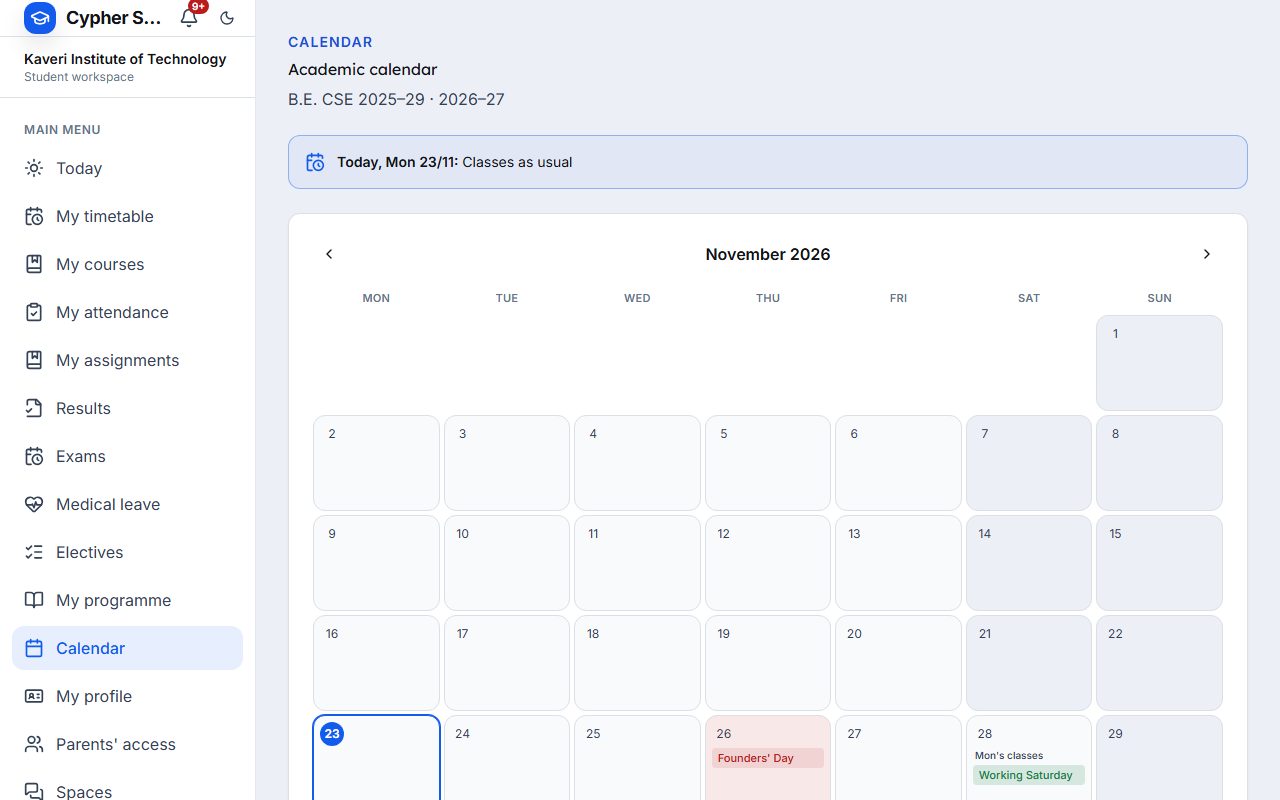
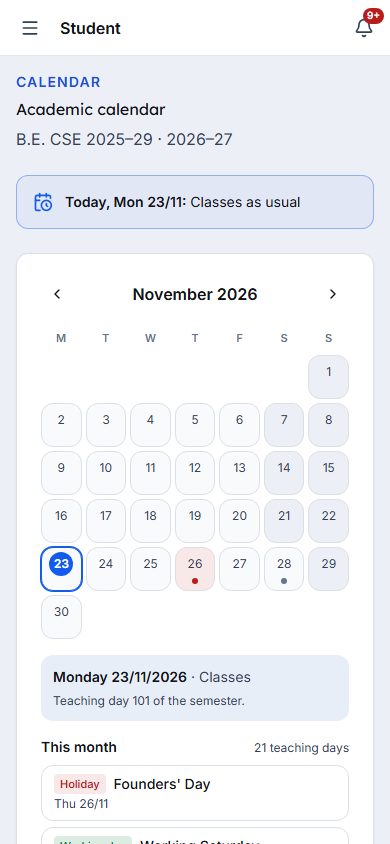
Calendar shows your batch's academic year: holidays, working Saturdays and the weekday they follow, day orders, exams, and what kind of day today is.
Who can do this: students, for their own batch's calendar, once the college publishes it.
Steps
-
In the menu, choose Calendar.
The bar at the top says what today is, for example "Today, Mon 23/11: Classes as usual".
-
Use the arrows beside the month to see the months before and after.
-
Read the days:
- a Holiday is marked on its date;
- a Working Saturday says whose classes it follows, for example "Mon's classes";
- a college that uses day orders shows the day order on each teaching day, for example DO III;
- anything marked Tentative may still change.
-
On a phone, tap a date to see what it is, for example "Teaching day 101 of the semester". This month lists the month's holidays and changed days.
Coming up lists the holidays, working Saturdays and exams in the next 60 days.
What happens next
Your timetable follows the calendar: on a holiday you have no classes, and on a working Saturday you have the classes of the day it follows. When the calendar changes, you get a notification.
If something goes wrong
- "You're not enrolled yet": your batch's calendar shows once the academic office enrols you.
- "Your calendar couldn't load": check your connection and try again.